Showing posts with label IPhone Apps. Show all posts

Tuesday, June 26, 2012

Update: CardMunch by LinkedIn

Date:  June 26, 2012

Some times ago, I recommend to use Cardmunch by LinkedIn as a business card management app.

Previous Post:  http://miniliew.blogspot.sg/2011/12/great-business-card-app-cardmunch.html


NewImage.jpg


Today, after many months later, let's look at it again, and see if I am happy.

It now has a user login website.  i.e. http://cardmunch.com/user/login


Screen Shot 2012-06-26 at 7.24.52 AM.png


Again, on the website, it explains how it works.  It is not OCR, it is not machine read.  All these name cards are transcribed by real people.  Real people read the cards and fills in the contact for you, and push it to your LinkedIn account.


Screen Shot 2012-06-26 at 7.25.30 AM.png


There aren't a lot of things you can do on the website.  It showed how many jobs has been submitted, and how many has been transcribed.  I found that it is getting slower, I think it is becaue of the gaining of popularity of this App.


Screen Shot 2012-06-26 at 7.26.11 AM.png


A click on the contact, it shows you the contact details, as well as the scanned card.


Screen Shot 2012-06-26 at 7.37.50 AM.png

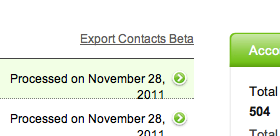
Ok, I think the user web site is still very primitive.  But there is a "Export Contacts Beta" link where you can download this as a CSV file and see it in your Excel.
Screen Shot 2012-06-26 at 7.26.38 AM.png


And the other option is to save it to a Mac OS X .VSF Address Book File.


Screen Shot 2012-06-26 at 7.26.49 AM.png


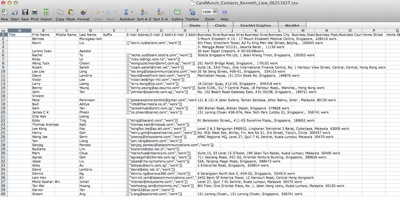
This is the fastest way to bring your contact around with you as a Excel spreadsheet.


Screen Shot 2012-06-26 at 7.27.04 AM.png


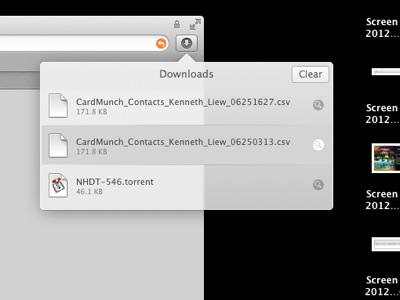
Once i it is downloaded, you can simply open the CSV file.
 

Screen Shot 2012-06-26 at 7.27.17 AM.png


All the contact info, title, company, phone, mobile phone, address info are there.
 

Screen Shot 2012-06-26 at 7.27.53 AM.png


As a result, after many months of using it.  I still recommend it.  Some people are very afraid about privacy.  Well, you do have a LinkedIn account, right, so, in any way, the Cloud will still get your info either way.  I think CardMunch has bring the business card application to another step.  I owned about 2-3 different business card readers.  Non of them works well.  Most of the OCR are crappy.  Thanks to many innovative designer who design the card so ugly.  CardMunch isn't perfect, but it is sufficient for me.  I need to make sure that my cards are stored in the cloud.  I need to make sure that when I need the contacts, I am able to access it with or without Internet.  And when I change iPhone, I should be able to retrieve my cards and contacts.  That's it.


Monday, April 2, 2012

iPhone App: WAZE - Social GPS Navigation with Turn by Turn

Date:  Apr 1, 2012

Updates:  [Apr 2, 2012] The Application is cool, and is fun.  But it does not mean that it has the full map.  For example, they cannot find some of the roads lead to my son's school.  But if you always drive to work using highway, or major road, it will gives you the traffic condition which you need pretty badly to make decision to change your route.

Today, I used it to plot a route to my office.  As you can see, it says, I can reach my office about 8:36 minutes when I just entered the AYE from Clementi Ave 6.  And It also show that there will be congestions at the initial part, plus a small accident.  So, you know that you can continue to take this route, and as long as you pass the initial congestion, you will be fine.

IMG_6490.PNG

Now, when there is more traffic condition change, it will prompt you and reupdate the timing.  And all these are all contributed from all the waze ussers.

IMG_6491.PNG

[End of Update 2/4/12]

One of the interesting things I learned from my Malaysian partners during my visit in Bangkok is this.

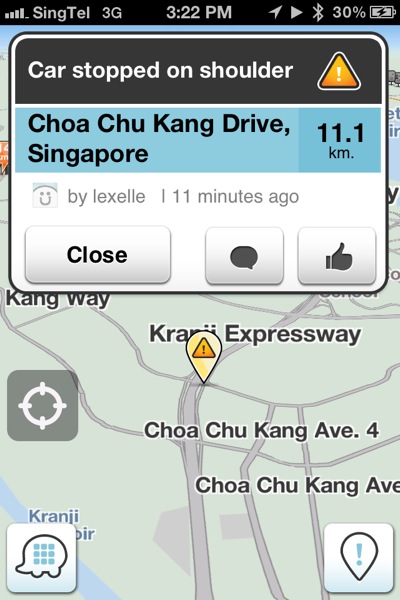
This is an iPhone App.  It is a Free GPS.  It has turn by turn instruction speak out.  And it is a SOCIAL APP.  My friends from Malaysia says it is very useful in Malaysia, as they now can use this to tell which route is more congested and try to avoid it.

NewImage.jpg

It is just like a GPS App.  You can key in your destination, and they will calculate the route for you.  If there is accident in front, it will tell you.

So, how they get the accident info?  It is usually entered by another users who just passed by there.  It needs the collaborations of all the users.  If you happened to drive pass the accident area, and found that the accident has cleared off, simply press a button "Not There".  The App will look at the speed around that road, and number of people responded to the incident, and decide to take out the accident icon or not.  It is pretty cool.

IMG_6481.PNG

During night time when you use, the screen will be black lid.

And of course, it has the whole world.  At least, I used it in Bangkok, my friend use it in Kuala Lumpur, and I used it again in Singapore, and it works for me.

The server end will look at groups of users who uses the road in a period of time, and then, auto calculate the average driving speed.  In this diagram, it shows that there is a moderate congestion at the Ekkamai road.  The speed is only 14kmh.

IMG_6331.PNG

When you stop your car at the traffic light, while the Waze GPS is on.  It will pop out the incident report windows.  Yes, only when you stopped the car for a while, they will show you this.  If you are the driver, they will disallow you to type.  You have to declare that you are a Passenger, then, you can message and type.IMG_6484.PNG

I think it is a very cool program.

IMG_6483.PNG

Li Ka-shing's Horizons Venturs Hng Kong and Kleiner Perkins Caufield & Byers have invested $30 million in this social traffic and navigation company.  This is the report they done half a year ago.

NewImage.jpg

By the way, it is available not only on iPhone App.  It is on iPhone, Android, Blackberry and Nokia platform.

Also, for countries such as Malaysia, keep on building new roads, and if users of WAZE pass thru a road that is not on the map, and it see another few people pass thru it, it will build that road and update the map.  This feature is cool, as you will always get the latest map.

Also, you can go to their Live Map on their web site.  http://www.waze.com, do thinks like, now I know the exit to AYE from Clementi Ave now is moving at 29 mph.

Screen Shot 2012-04-02 at 7.24.00 AM.png

Here is the tutorial...

http://www.youtube.com/user/WazeGPS1?feature=mhsn#p/c/52052798FC5106B5/0/5vOS5eFEJeA


Monday, December 5, 2011

Great Business Card App - CardMunch

Date: Dec 5, 2011

People like me collect a lot of name cards.  You simply don't know what to do, and you also don't want to bring a stack of name cards with you, or to store all the contacts into your contact list.  You don't call these people every day.  So, what do you do?

1.  Those physical business card scanner does not work!  Why?  Because there is no standard of designing name cards.  So, the OCR cannot recognize most of the name cards items or entries.

2.  Those earlier iPhone App is even worst.  Some keep a copy of the image (business card) that you took in the photo album.  Imagin you have few thousands name cards.  Also, the OCR is equally sucks!

3.  I ever thought of storing it on Evernote.  Since evernote can store image file.  But the OCR again is going to fail you.

I have been searching and downloading a lot of business card reader Apps and so far none of them has met my requirement.  Until now...

Today I strongly recommend this business card app - CardMunch.  It is not perfect yet, but the logic of how the app works really make sense.  So, basically, just like "the man inside the ATM machine", there is a real human being doing the job for you, i.e. read the scanned photo of the business card, and key in the name card contact details.

NewImage.jpg

CardMunch is provided by Linkedin.  It is very clever for them to come up with such App.

IMG_1613.PNG

This is a very simple App.  And I am sure the people from Linkedin will keep improving it.  This first version already won my heart.

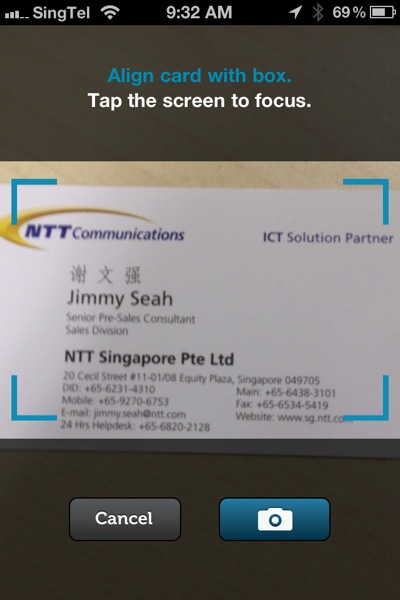
Simply align the name card within the box, and press the Camera icon to take photo of the business card.  You can tap the screen to focus.

IMG_1597.PNG

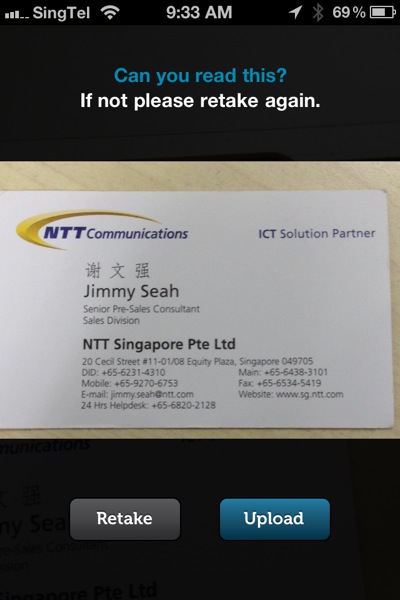
Once you snapped the photo, you can see the photo image right away to decide whether to retake or upload the photo.

IMG_1598.PNG

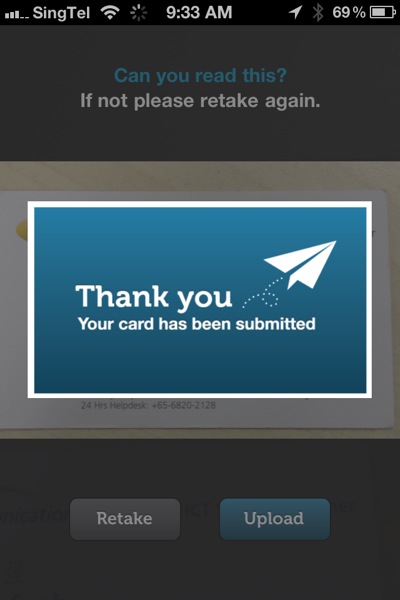
If you choose upload, then, a Thank You message will come out.  Basically, you have submitted the business card online to CardMunch site.

IMG_1599.PNG

The card you have snapped and submitted will be shown on the top part of your contact list.  You can swipe left and right if you have submmited more cards.

IMG_1600.PNG

You can select that card, and a NOTE box will come up.  Basically allowing you to put extra notes to explain how you get the cards or note down important details of this contact.

IMG_1601.PNG

So, basically, once you submitted your card, CardMunch site will have real human beings to do the reading for you and to do the data entry for you.  Yes, real human, not machine OCR algorithm.  Once they key in the card, it will showed as NEW card in your contact list.

IMG_1602.PNG

One thing which they done right is, they CORRECTLY enter whatever they see on the name card.  If the name card listed the phone number as 67381315, then, it will show up the same way as the card.  Now, since we have the option to store this in our iPhone contact list, the lack of intelligent may not be good for us.  For example, you may want it to store as +65 67381315.  So, just imagine some phone number on the card is listed as (65)67381315.  Then, it will show up this way too.

IMG_1603.PNG

You scroll up from that contact, your image of the business card is correctly shown.

IMG_1604.PNG

They even tell you when you scanned the card.

IMG_1605.PNG

Since it is a Linkedin product, so, they will cross reference it with Linkedin, and pull the Linkedin photo onto the CardMunch database.

IMG_1606.PNG

Wait now, how do you know it is a human being reading the card.  Well, I took a photo of the card and took it sideway, and it magically also input the data correctly.  So, must be a human efforts to rotate the card and read the info and data entry it.  Well done.

IMG_1607.PNG

You Can forward the card, you can save it in your iPhone contacts, resubmit or delete it.

IMG_1608.PNG

Of course you can email it too.

IMG_1609.PNG

If the phone entry is entered correctly with +65 or without +65, you can call the cotact.  Also, you can Connect to the Linkedin too.

IMG_1610.PNG

OK.  The searching facility is also quite nice.  Simple, if they can make it more complex search, it will be nice.

IMG_1611.PNG

I think it is very genius and generous for Linkedin to think of using cheap labour to do the data entry for busy people like us.  Although sometimes there may be some error.  But the error rate is not as much as the OCR.

Friday, September 9, 2011

What is the best way to study?

Date:  Sep 9, 2011

As you know, next monday is the exam day for "The Science, Art & Business Wine" class I took at Singapore Poly.  There are so much materials, so, what is the best way to study?

Of course, using technology.  Introducing Evernote Peek.

NewImage.jpg

What is that? It is an Apple iPad2 App.

NewImage.jpg

What does it do? It allows you to create quizes from your study materials.  Here is the coolest thing.  It make uses of the magnetic cover to show you the question, and then answers by simply flipping the cover to unveal the answers.

NewImage.jpgNewImage.jpg

What do you need?

- You need an iPad2

- You need to have the Apple Magnetic Cover

- You need to have Evernote to create your note

- You need to have Evernote Peek to run your Quizes

Here is how to create a simple quiz for my wine course. In Evernote, create a New Notebook.  Give it a "Wine Quizs" as the name.  I do this on my iMac Evernote app, is easier.  Or you can create it using your Evernote app on iPad or iPhone.

Screen Shot 2011-09-09 at 6.42.05 AM.png

Then, you start creating your notes which is the Questions and Answers pair for the quiz.  So, the Title is your Question, and you type your answer in the Note area.  As simple as that.

Screen Shot 2011-09-09 at 6.48.43 AM.png

Run the Evernote Peek on your iPad2.

IMG_0178.PNG

So, when you run it?  You simply flip the cover...

IMG_0939.JPGIMG_0941.JPG

If you want the answer, flip up more to reveal the answer

IMG_0942.JPG

So, here is the question

IMG_0937.JPG

And there is your answer...

IMG_0938.JPG

So, when you go to sleep, just flip the cover few dozen times to help you memorize the notes.

Amazing technology.  Practical Use.

One tip, turn off the auto-brightness and set the brightness into what you like to see.  so that you dont have this auto-dimming problem every time you unveil the question and answer pair.

IMG_0177.PNG