Showing posts with label Xiaomi. Show all posts

Thursday, September 24, 2015

Xiaomi Mini TVBox 小米小盒子 with Mibox MIUI 1.3.83 or 1.3.98 - How to Install Shafa Market 沙发管家

Date:  Sep 24, 2015

This blog post is for advanced users.

If you bought an original Xiaomi Mini TVBox that is factory dated 2015.06 (June 2015).  It will comes with MIUI 1.3.83.  This is a new version of the operating system that prevent you from installing third party APK/APP files such as Shafa Market (沙发管家) Apk.

You should already know the following before you start this.

1. What is Xiaomi TV Box.

2.  What is Xiaomi TV Mini Box.

3.  The reason why Xiaomi Mini Box does not come with USB port.  Yeap, there is no USB for you to plug your thumb drive.  So, you cannot install 3rd party APK files.

4.  What is Shafa Market.  Because you can install lots of fantastic apps from here.  And you can do remote installation from a PC too.

5.  You should know how to run a NAS or sharing a directory from your Windows or Mac.  Just copies the APK files onto this shared directory.

IMG 0570

You cannot blame Xiaomi removing this and that.  That is because the Chinese  government really wanted to control what apps you can install on to the Big Screen TV.  So, that is why they come up with so much restrictions to prevent all these TV content providers to make sure they comply to the government rules.

IMG 0575

But luckily, there is always a “backdoor” or way that we still can do this.

First thing, make sure that you allow to install 3rd party apps.  But going to the security settings.  The ADB does not work anymore.  

IMG 0571

You might see this.  Try not to upgrade.  If possible.

IMG 0572

I have tested both version 1.3.83 and version 1.3.98.  Both works.

IMG 0573

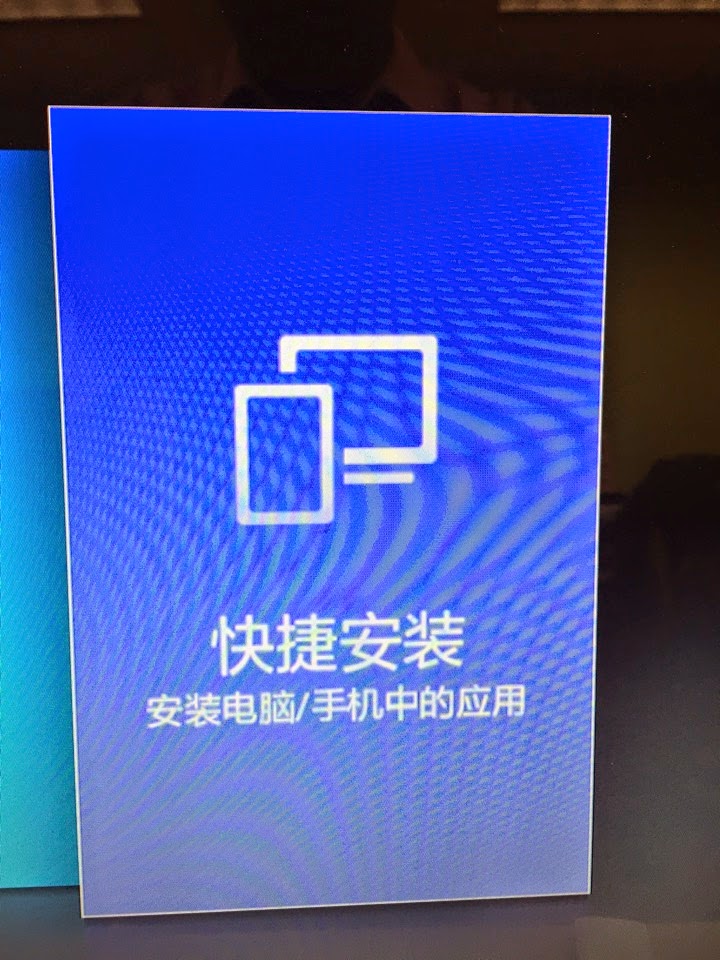
As you notice, starting 1.3.83, there is no 快捷安装 (Remote installation) any more.  So, don’t waste 

IMG 0574

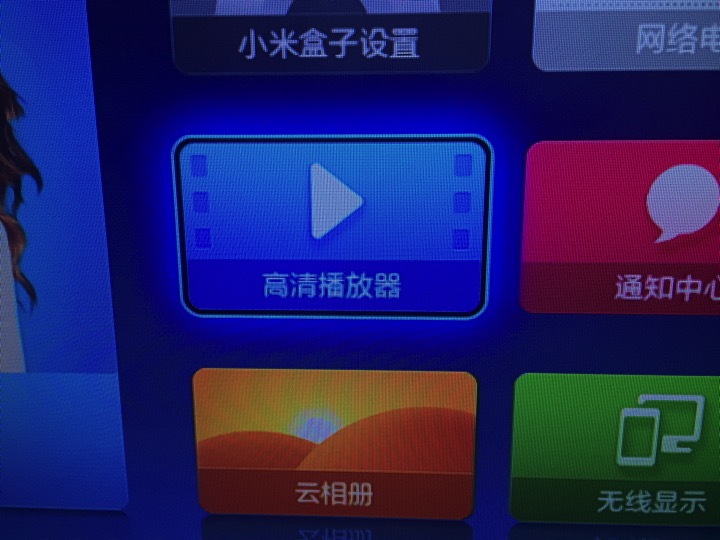
Luckily, we still have the 高清播放器 (Media Player).  This is the stock media player that comes with Xiaomi.  It is a very power media player.  And they have done the network file sharing properly and can search all the network drives available on your network.
IMG 0586

So, when you run it, go to 设备 (facilities).  You will see all your network drive.  I saw both my Synology NAS.  I saw my son’s Windows PC.  I saw my iMac shared drive too.

IMG 0587

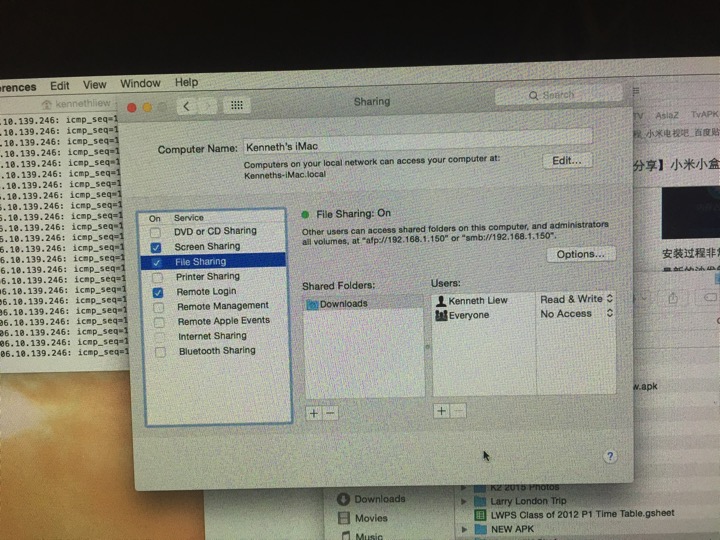
For those who does not know what to do.  Go learn how to enable “File Sharing” on your iMac.  Or google it.
IMG 0591

Double click on the network drive.

IMG 0588

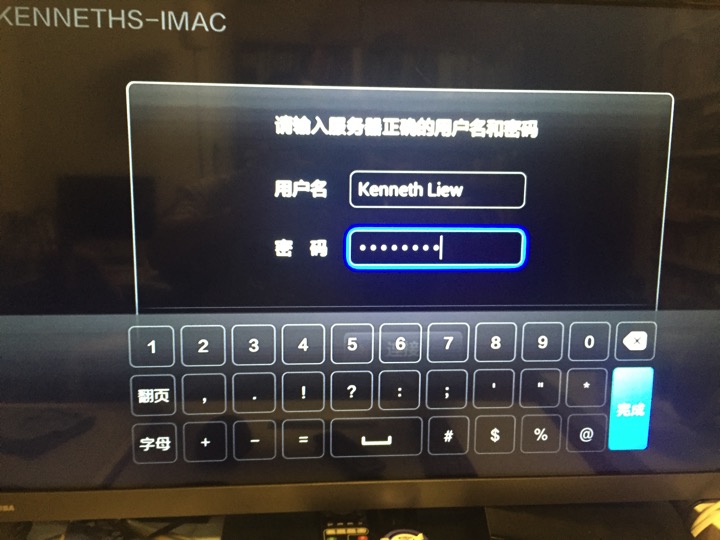
Usually you will need to key in the user name and password to access the network drive.
IMG 0589

And you are in.  For the example, I went into my Synology drive as I already have a folder that has all the APK in it.

IMG 0592

And there you go.  You know what to do next.  Click and install.

IMG 0593

As simple as that.

Saturday, May 23, 2015

Xiaomi TVBox Mini in Chicago

Date:  May 23, 2015

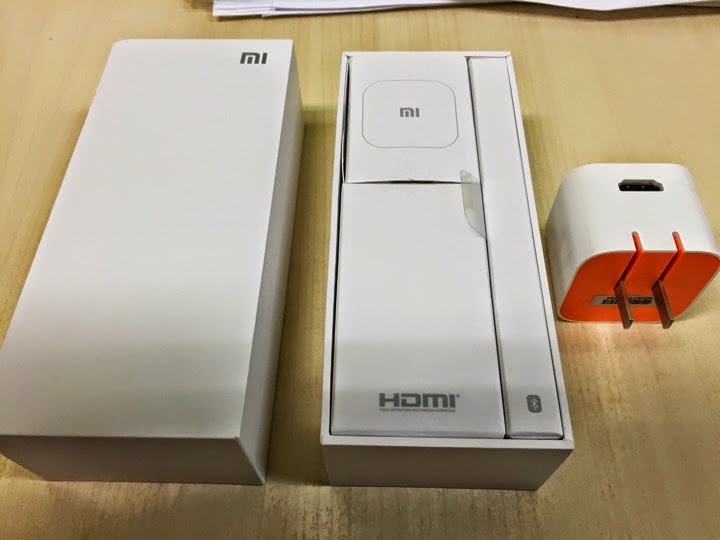
This is my Xiaomi TVbox Mini.  It is a small box.  Easy to packed in luggage.  Have HDMI cable, Xiaomi TVBox Mini adapter, and remote control.  I just bring the whole box.

IMG 1990

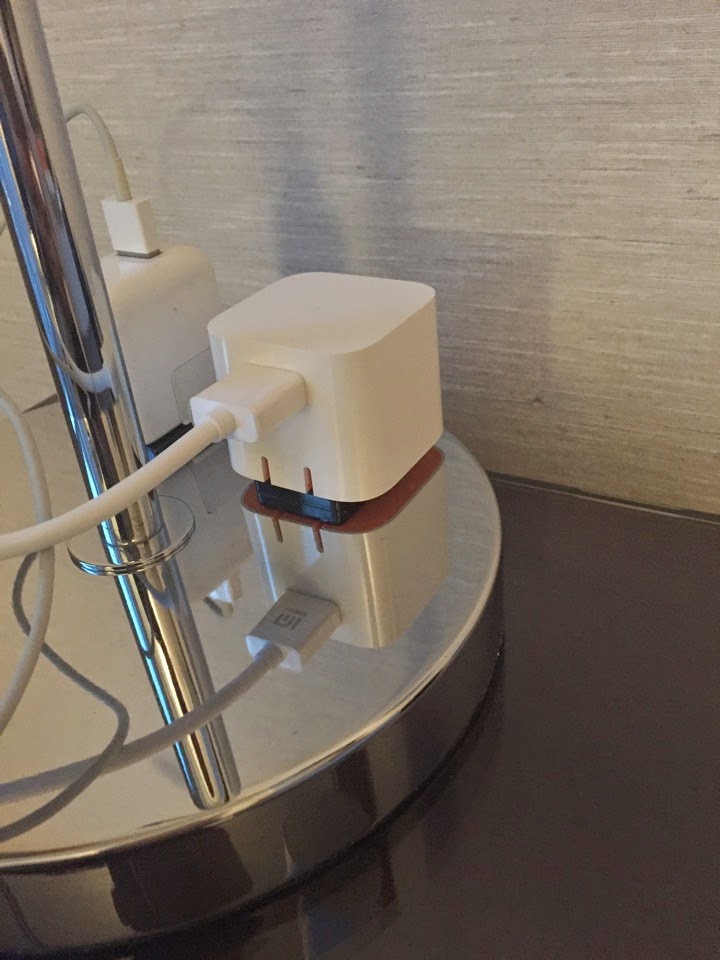
When I reached IVY boutiqu Hotel in Chicago.  I unpacked the box, and plug it into the electrical outlet.  PRETTY NEAT!

IMG 2373

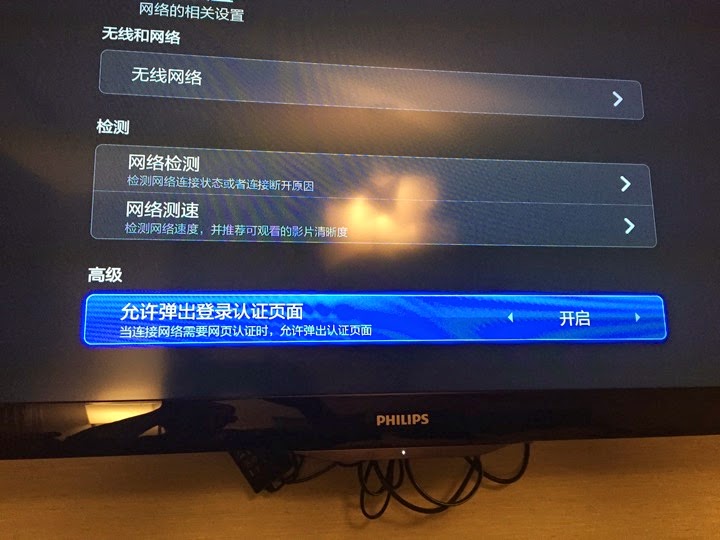
Now, in order to get it to work with the Hotel Internet.  You need to enable this option which is under the WiFi Network option in Settings.

This options allow the box to display POP UP web authentication page.  This is a new feature from Xiaomi.

IMG 2368

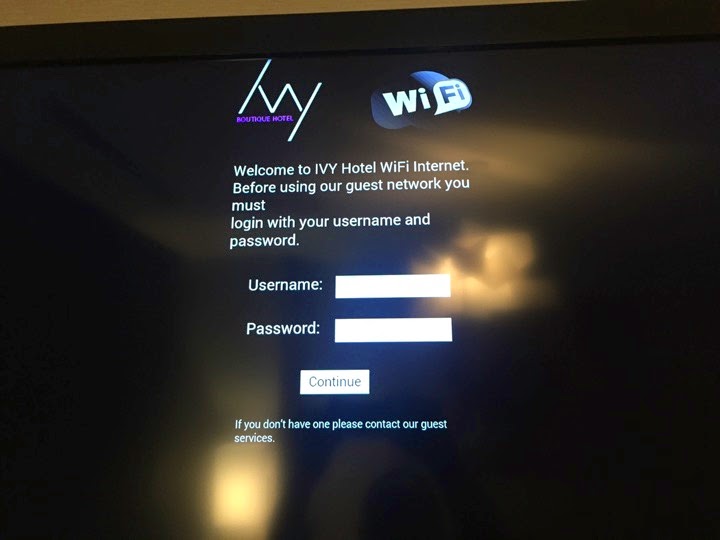
And as soon as I enable the above feature, the IVY hotel WiFi login page is displayed.  Key in the hotel WiFi login password.

IMG 2369

Let’s check the network.  And it works!  See that white HDMI cable line?  That connects to my Xiaomi TVbox Mini.

IMG 2370

Depends on where you are, some of the TV Movies App may not work.  For me in Chicago, most of the Geo Locked App does not work.

IMG 2469

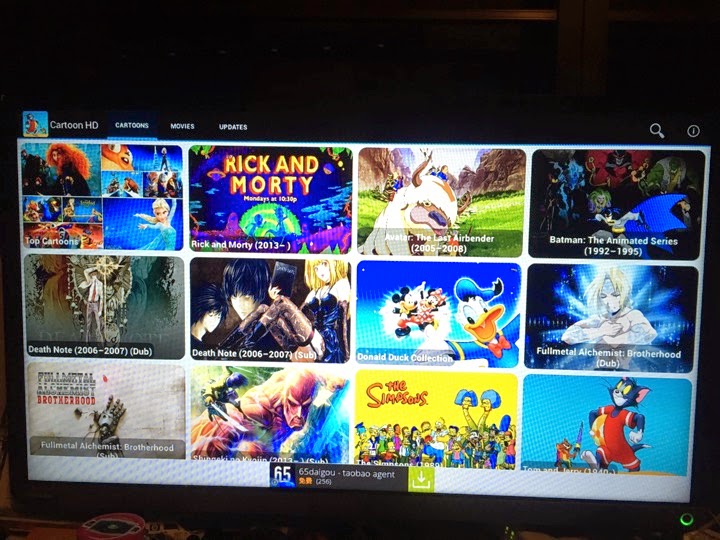
One of the App that I am sure it will work is “Cartoon HD” app.  Although it carries a “Cartoon” word in its name, but it has all the latest TV and Movies show.

IMG 2470

And playing the show has no lag or buffering too.  It is fantastic!

IMG 2371

I watch “The Flash” and the “Arrows” in Chicago.  (latest episode of course).

Monday, May 4, 2015

How to Install Apps on MiBox Mini 小米小盒子 from Xiaomi

Date:  May 4, 2015

Updates:  You cannot use this method to install App anymore.  Please see here.  http://miniliew.blogspot.ch/2015/09/xiaomi-mini-tvbox-with-mibox-miui-1383.html

“May the 4th be with you!"

Today, let’s learn how to install 3rd parties apps onto the Mibox Mini.

Screen Shot 2015 05 04 at 9 26 14 pm

First, what is Mibox Mini?

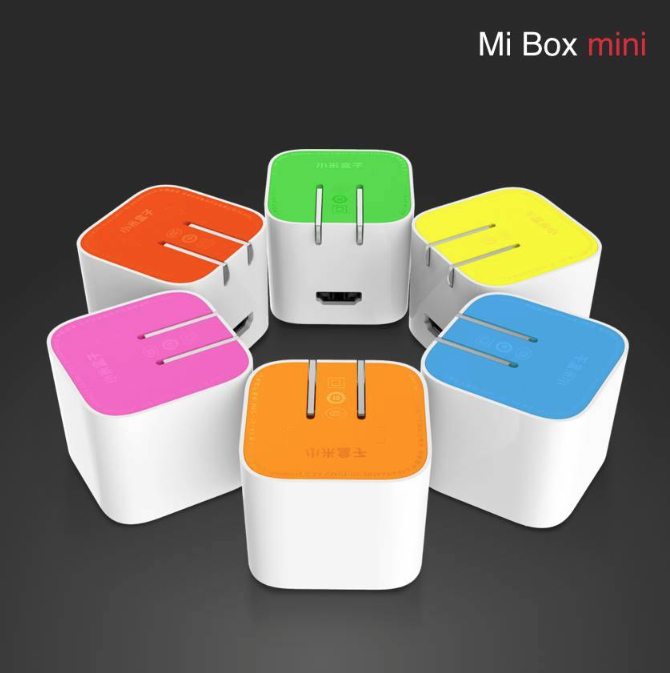
This is Mibox Mini.

IMG 1989

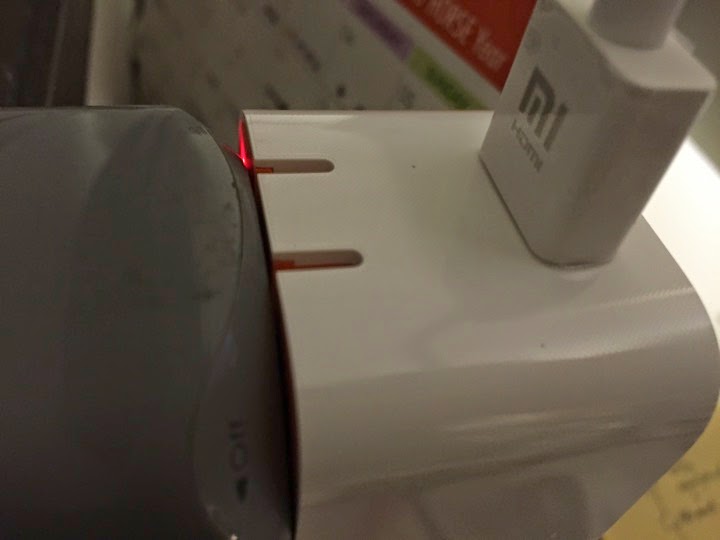
It is that small.  Sometimes, it is better than the FireTV Mini.  Simply plug the Mi Box mini into the electrical outlet and plug in the HDMI cable.

Screen Shot 2015 05 04 at 9 26 55 pm

The packaging is very compact.  Nice.

IMG 1990

The foot print is very small.  It is like a adapter.

IMG 2040

But it stream shows and movies onto your TV.  It is good and light to carry around when you travel.

IMG 2041

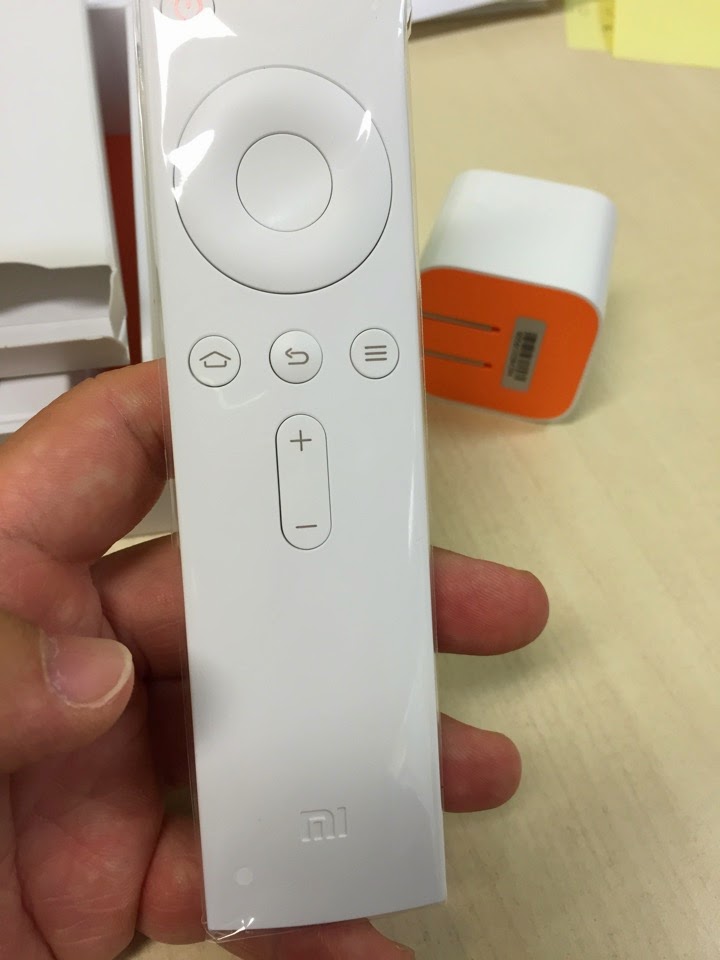
Check this out.  The new WHITE COLOR remote control.

And it is a bluetooth remote control.

IMG 1991

Just in case that you lost the bluetooth signal.  You can pair the bluetooth remote control by pressing the Home button and the Menu button and hold it for few seconds until you hear the beep sound.  You have to hold the remote very near to the Mi Box mini.

Screen Shot 2015 05 04 at 9 35 53 pm

Ok.  There is only one interface on the Mi Box mini.  That is the HDMI port.  There is NO USB port.

So, with NO USB port, how do you install the third party applications?

Very easy.

1.  First, launch your Mi Box mini as per normal.  Setup the WiFi.

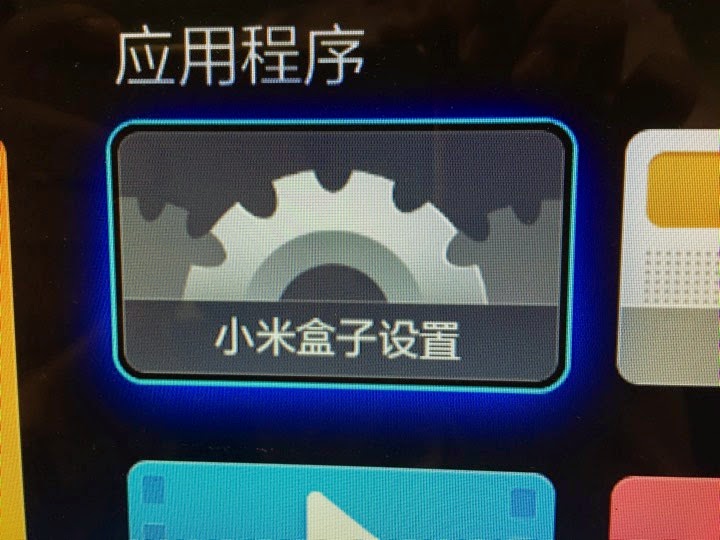
2.  Next, you go into the Mi Box setting.

IMG 1993

3.  Then, you select the Account & Security Safety option.

IMG 1994

4.  You have to select YES/ALLOW to install applications from unknown source.  (The First line option)

IMG 1995

5.  Select Allow.

IMG 1996

6.  Next, You need to allow ADB to be turned on.

IMG 1998

7.  Select ADB developers option by allowing it.

IMG 1997

8.  Press the HOME BUTTON.  Go back to the Xiao Mi Box UI page.

9.  Go and select the Applications Store.

IMG 1999

10.  Under the Account menu.

IMG 2001

11.  Select Fast Installation.

IMG 2002

12.  Then, this page will be displayed.

IMG 2003

13.  You need this URL address for next step.

IMG 2004

14.  Go to a web browser, and type the URL given from last page.

IMG 2005

15.  This is the remote installation page.  Simply drag the Apps into that box below, and the application will be installed on the Mi Box mini.

IMG 2006

16.  Goto www.shafa.com to download the Shafa Application Store.

Screen Shot 2015 05 04 at 9 52 38 pm

17.  Drag the APK file.

IMG 2010

18.  Drop the Shafa app inside the box.

IMG 2011  1

19.  Few seconds later, the application is successfully installed.  Click “Install other APK” to continue upload APK files.

IMG 2013

20.  I just installed two APKs.  The Cartoon HD and the Shafa Butler/Apps Store.

IMG 2014

21.  Then, you have choices, if you already have tons of APK on your computer, simply use the same method to install the APK.  The benefit of doing so is you not need to say “YES” to the annoying installation dialog.

IMG 2016

22.  Or, if you want, just install the rest of the APK from the Shafa Apps Store.

 IMG 2017

I told you is easy.

This Mi Box mini is selling for RMB 199 in China.  It is about $50-$60 in China.

I think it is a very light and good carry companion to overseas.

Tuesday, February 3, 2015

Good APK - Cartoon HD - Replace Your Netflix and Hulu

Date:  Feb 3, 2015

If you are looking for an App to replace your Netflix & Hulu, this is the app.

Download Links:  http://cartoonhdapk.com

or

CartoonHD 2.0.2 APK

 IMG 7654

Why do you need this App?  Because Netflix & Hulu are chargeable.  Approx $10/month for each services.  If you don’t need it, you can cancel both chargeable service and use this App.

I am running the following on ViewQwest 100Mbps + FreedomVPN.  I am not sure if it will run on other ISP or not.  I am also not sure if it will run without VPN or not.  But this is what I got.

I tested it on my Xiaomi Mibox 3 (2GB), 10moons T6, and Amazon Fire TV box.  All works the same.

The interface is very simple.

It works with the remote!  Yeah!

IMG 7655

Selecting the “Top Cartoons”, it list out all the cartoons, new and old.

IMG 7656

Here, I selected the Lego Movie (2014) (highlighted in yellow), it gives me options to play in different format.  For this show, they have 3 diff qualities.  Of course I choose 720p.

IMG 7657

Clicking on “Custom” it allows you to choose different media player.  You can Download the show, but later, I am not sure how you going to retrieve it.  Will update when I got time to test out.  Because my home network is good enough, no lag, no buffering, so, I am just going to press the Play button.  Later you can see the demo in the video.  

IMG 7658

I used my iPhone to take the following video...

As you can see, the remote control controlling the shows is quite smooth.  Later you can choose the show and play it in 720p.  It takes about 6-8 seconds to load a 720p buffer, and then, it runs very well.  

Then, I fast forward the show and see how fast it get buffer and play the show.  It played almost immediately.

Then, I check out the TV cartoon - Simpsons.  Select one of the episode to play.

Then, I check out “Sup” Japanese cartoon.  

Then, my cat meow.

Then, I choose to play the Movie “Guardians of the Galaxy”.

Show you my remote.

And all works perfectly on my ViewQwest link.

For the Japanese Anime.  There are Dup (in English) version, and Sup (in English) version.  So, it is good for those that don’t like to watch or listen in Madarin and Chinese.

IMG 7663

Let’s check out the "Movies".

IMG 7664

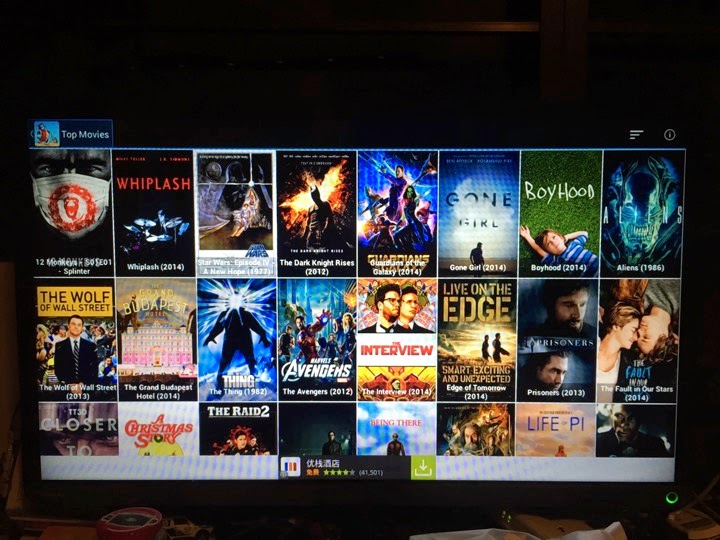
Here are the Top Movies.

I would say huge collection of Movies and TV Shows.

IMG 7665

This is the Top 250 IMDb movies.

IMG 7666

The TV Shows are all very new episodes.  I.e The Flash (ep 11 as of this writing), The Marvel’s Agent Carter (ep 4 as of this writing).

IMG 7667

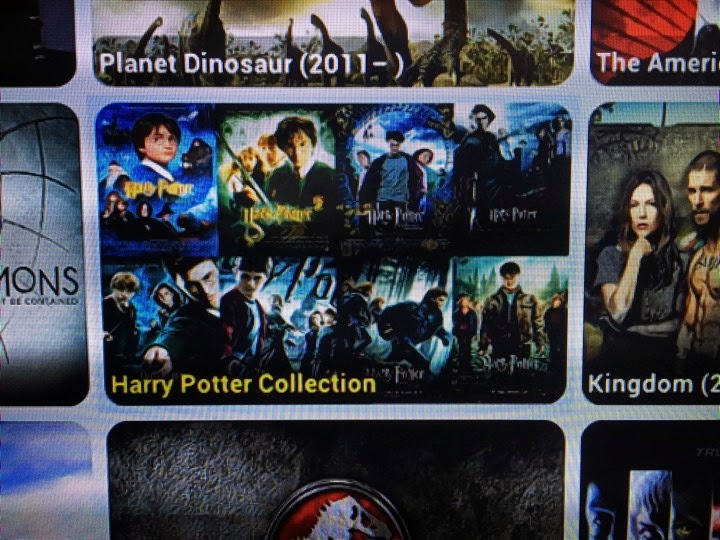
They even Group the movies into Collection.  Like X-men, Harry Potter Collection, etc.

IMG 7668

Clicking Harry Potter Collection, you get all the 8 movies.

IMG 7669

OK.  I don’t know how long this app will last.  The CDN seems pretty good with my home ViewQwest 100Mbps + FreedomVPN network.

With this, I can terminate my Netflix and Hulu subscriptions. 

It is English based.  Not Chinese based.

Enjoy ya!