Showing posts with label iPad2. Show all posts

Tuesday, May 21, 2013

How to Let Your Kids Learn on iPad/iPhone

Date:  May 21, 2013

This is always my favourite topic.  

iPad & iPhone always have this "love & hate" relationship with the parents.  We love the iOS devices  as it really has a lot of lovely educations apps that we are very sure it can teach our kids well.  However, we also sometimes hate it because of the risk of kids being "stuck" or addicted to using the iOS devices that we like.

Here is a great tip that a lot of parents did not even know about it.  

Paisei… even me, also learn this only recently.  hahahaha

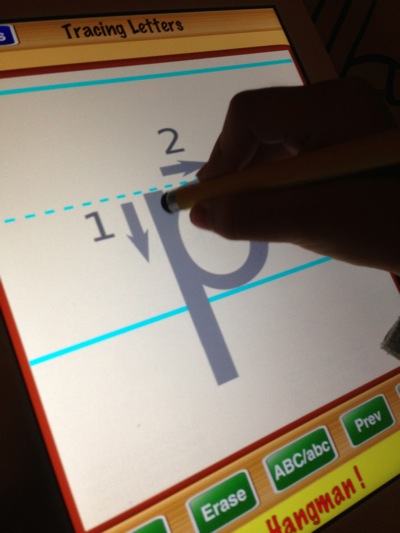
Our Kay Kay needs to learn how to write the alphabets.  In my opinion, the fastest way for him to learn is to run a letter tracing app.

IMG 1904

So, we downloaded this Tracing Letters App.  That has 1-2-3 on it to indicates which strokes to write first.

IMG 1902

One IMPORTANT tip for learning how to write is… to use a proper stylus.  For me, I let Kay Kay use my drawing stylus, which looks and feels like a normal pencil.  Do not let them use their fingers.  

IMG 1911

Everyday we let Kay Kay use this App and learn how to write.  And he begins to write better letters.

IMG 1906

This blog entry is not about this App.

It is about how to let your kids learn on iPad/iPhone without letting other games apps to distract them.

So, Apple has an answer for it.  And no one seems to know about it.  I only knew this from an article I read.

It is called GUIDED ACCESS.

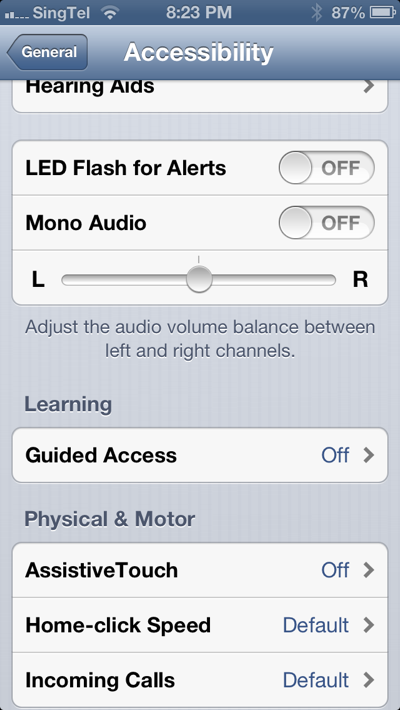
Go to Settings --> General --> Accessibility

Scroll down to see under "Learning" and turn the "Guided Access" function on.

IMG 1908

What does it do?  It actually keeps the iPhone or iPad in a Single App, and allows you to control which features are available.  

I strongly recommend the parents to turn on this.

IMG 1909

So, how do I use it?  When you launch any app, you simply press the HOME button three times.  They called it "Triple Click" the Home button.

IMG 1910

Once you do that, the Guided Access interface will pop up.  You can DISABLE the hardware button, you can enable Touch and Motion.

IMG 1912

It is a great interface!

IMG 1913

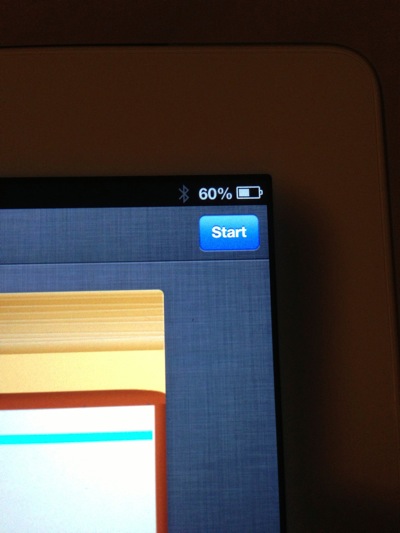
Once you happy with the settings, simply press "Start" button to turn on the Guided Access feature.

IMG 1914

Once it is turn on, the iPad/iPhone will not response  to any hardware button press.  

So, you can leave the iPad / iPhone safely to the child, so that they do not simply any how touch anything to disable or delete any of your important apps.  Or they keep on playing games.  It is not only for kids, if you are a marketing guy, you can run your marketing app continuously and no one can disable it and jump to another program.

IMG 1915

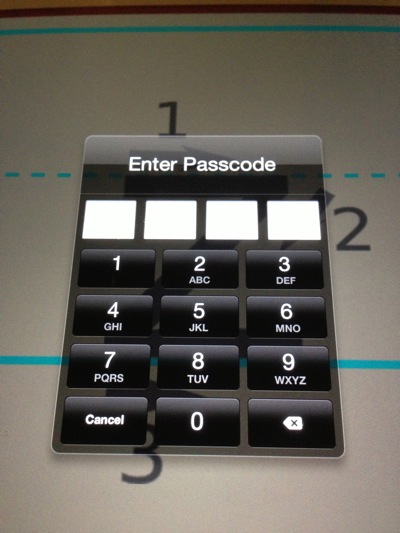
If you press Home three times, a passcode windows pops out.  So, you simply need to enter the passcode to DISABLE the Guided Access.

IMG 1916

Once you are in the Guided Access interface, click the top left corner "End" button will end the Guided Access for that app.

IMG 1917

Like this, your kid will only focus in playing one game, or one education app at a time.  And they will not hang on to the iPad/iPhone forever to play so many games on it. 

Try it now!

Wednesday, August 1, 2012

Spelling App - Spell Board

Date:  Aug 1, 2012

When Daddy teach Jay Jay spelling, Daddy will be very serious!  And he needs all kinds of tools available to teach Jay Jay spelling.

IMG 9544

This week spelling words are...

IMG 9554

Introducing "Spelling Words" iPad App.

IMG 9553

It allows you to create a list of words, so that Jay Jay can study them.  You need to record down the pronunciation of each word with your own voice.  So that your son can hear it, and learn the spelling.  There is a white board area for the kids to learn how to write the words.

IMG 9549

Then, you can press the Green Color "Take the Quiz".  The top box tells you how you did in the Quiz.  As you can see a big work displayed "Excellent" if you get 100%.  The bottom right box display the word list as well as the history.  How much time he spent in learning, and how much time he took the quiz and what is the score.

IMG 9548

When you take the quiz, it will first ask you if you want a randomised order of the word list.  If yes, then, they will randomly speak out the word (in your voice).

IMG 9550

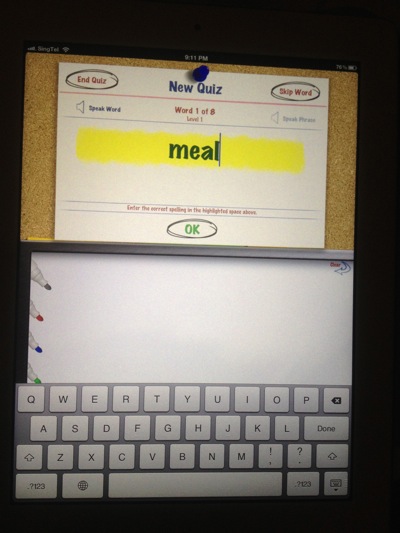
After you hear the sound of the word, then, you spell out by typing it out.

IMG 9551

Overall, I found it very effective way for Jay Jay to learn spelling on his own.  It keep to his pace.  And allow him to think about what he has learned few moments ago.

IMG 9552

So, I strongly recommend it.  The traditional way would require you to stay beside of your kid and teach him the spelling.  But my aim is I want him to learn on his own with his own sweet time.  Self dependent and time management is key for his future learning.

IMG 9547


Sunday, January 15, 2012

My Kindle

Date:  Jan 14, 2012

I did not tell a lot of people that I have bought a Kindle.  This is my Kindle.  Surprise!!!!

IMG_3215.jpg

Are you Surprise?

1)  It is not a Kindle Fire.  It is a Kindle Touch.  Cost about US$99 which comes with a non-intrusive advestisement.  I had Amazon shipped directly to me.  Well, I already have an iPad2, why would I want to have another similar thing?  So decision of buying a Kindle Touch is simple indeed.

2)  I am a big Apple fan.  Why would I want a Kindle Touch?  Can't you run the Kindle App on the iPad2?

The Kindle Touch is originally intended for my Domestic Helper.  Instead of going to the library and borrow books for her to read, I think buying her a Kindle Touch and downloads some MOBI e-Books for her is a better option.

But when Kindle Touch arrived, and when I get my hands on it.  I see it's purpose.  Why it exist.  And Why Amazon sold a lot of these.  And sorry, I got to play a while before I give it to my domestic Helper.  :)

Today, most of my friends have both iPad and iPhone.  These are very good products from Apple.  There are very very smart and elegant devices.  Sometimes, a lot of people replaced their laptop with iPad2.  However, sometimes, it is way too smart, and sometimes, you got to somehow get away from it.  The notifications will always come.  And when it does, it will always interupted whatever you are doing.

So, for the past few days, I have been reading my Steve Jobs biography on my Kindle.  And I left my phone and iPad away from me.  I can concentrate much better reading it on the Kindle then I read it on my iPad2.  And I sort of enjoy the way I read the book from Kindle.  It was peaceful, and more focus.  And the paper e-ink technology really makes the Kindle looks like a real paper back book.  I have enjoy reading my books on the Kindle for the past few days, I must say.

Now you know the reason.  :)

I have since downloaded hundreds of books on the Kindle.

Friday, December 30, 2011

When Is the Last Time You buy a Book (Hardcopy)?

Date:  Dec 30, 2011

Today is the last day the Salvation Army Donation drive at my condo.  So, better clean up some old stuffs.

These are books that I have bought.  Not sure when, but books that some how I bought, and I don't even recall I have bought them.  I am guessing that mostly are from Airport bookstore.  :)  Buy something to read on business trip.

IMG_2681.JPG

If you take a good look at them, these books actually looks OLD.  They become sticky.  And there is a lot a lot of dust collected on them.  I am not sure how many times I had ever take them out and read, but I am very it is almost none.

That is the old life.

Today, you have iPad, iPhone and MBA.  You can easily buy a soft copy version from the online bookstore.  Or if you want to, you can always find a copy of .epub or .PDF of the book or magazine you want from Google.

No longer you need to keep these books to collect dust.

This is how many books that I throw away (used to be 4 shelfs full).  Now, I only keep the comics, cook books, Feng Shui, and some nice collector items.  That's it.  The bottom one all will go to the office.  :)  No longer technical enought to read these technical books.  hahaha...

IMG_2684.jpg

To thnk about it... it is really long time ago since I really buy a physical book. hahha


Sunday, November 20, 2011

The Amazing Apple TV

Date:  Nov 19, 2011

I love Apple products.  Steve Jobs really left behind a great innovations for us.  So, we got to appreciate his efforts.  I bought one of these T-Shirt from Taobao.

IMG_0760.JPG

So, I asked my wife to buy and carry these back from her US trip.  Actually it is a nice gift to give to some VIP customers.  You can't buy it in Singapore from any Apple reseller store.  The reason is Apple TV has a lot of US-centric Movie, and TV shows that Apple has signed copyright with all the content providers so that they can only distributed it in US only.  Means, in order to see those content, you need an US-based Apple ID account.  You don't have this, and you only use your Singapore based Apple ID account to login, the Movies and TV-Series menu will not show up.

So, you might asked, if that is the case, what else you can do with Apple TV in Singapore or Malaysia?

IMG_0854.jpg

1.  Photo Slide Shows

So, instead of showing your photo from your PC, iMac, iPhone, iPad2, etc.  Your Apple TV can get the contents of your iTunes/iPhoto, or iPhone/iPad2, and show it on the big screen TV, so that every one can see the photo on a wide screen TV in the living room.  This is particularily very useful during gathering at your home.

With AirPlay capability on iPhone, iPad2.  When your friends visit your home, they can simply "AIRPLAY" their photos onto your TV via the Apple TV.

2.  AirPlay Mirroring

NewImage.jpg

Play Games

If you have iPhone 4S or iPad2.  You are equiped with AirPlay Mirroring feature.  That means, thru the Apple TV, everyone can see what you do on your iPhone 4S or iPad2.  So, this means, your kid when he or she is playing Angry Bird, instead of their cousins standing beside, around he/she to watch they playing games... the kids can see it on TV.  Everybody can enjoy playing Angry Birds, as they can see how one another perform and play the games.

NewImage.jpg

For games like Real Racing 2, Pinball HD, Star Wars Arcade - Falcon Gunner, and etc.  You can use the iPad2 as a controller to control your ship, your car, your pin ball and play it from the big screen TV.

Office Presentations

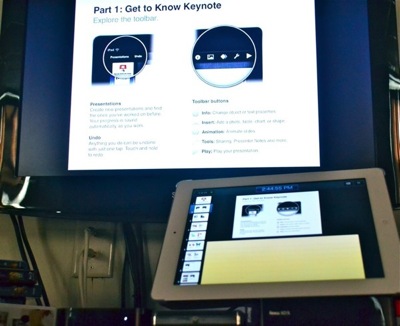
When your customers come to your office, and your office equipped with Apple TV, and WiFi, you can present it using AirPlay Mirroring.  One of the coolest thing is, the real laser pointer will not work on the TV screen, but if you hold your finger on the screen, there is a laser pointer appeared on the screen. (only using Keynote Apps).
NewImage.jpg

Watch TV/Movies

There are a lot of Apps in the app store you can download and usually you watch it on your iPhone or iPad.  Now, you can AIRPLAY it onto the TV Screen using Apple TV.  All these below are excellent streaming TV program on iPhone and iPad.  Now you can project it onto the big screen TV with AirPlay.

- PPS TV

- PPTV

- 奇艺影视

- Dedo TV

- Le TV

- 高清影视

NewImage.jpgNewImage.jpgNewImage.jpg

NewImage.jpg

NewImage.jpgNewImage.jpg


I used Air Video Server & Air Video to stream my TV / Movies collections from my NAS onto the TV screen using Apple TV.

NewImage.jpg

3.  Facetime or Skype

Lastly, very important, you can run facetime, or skype video conferencing on iPad2 or iPhone 4S, and then AIRPLAY it on the big screen TV.  All audio and images will be air played on the TV.  How about that!

NewImage.jpg


It's cheap!

There are a lot of things that you can do on this small little devise.  And how much is it?  USD$99 per box.  It is affordable.  You add up the tax, and exchange rate... its about SGD$140 or so.


One More Thing...

Look at the remote.  SO SIMPLE and ELEGANT!

NewImage.jpg


A SIMPLE SETUP GUIDE

Here, I just want to run thru a very quick guide to show you how easy to setup the Apple TV.

After you open a box, this is what it looks like.  So, go buy a HDMI cable, and then plug it into the TV and Apple TV.

Plug in the Power Cable.

That's it!   (You can plug in the LAN cable, but I uses wireless)

IMG_0715.jpg

OK.  Please take a look at this blog for info how to optimized Apple TV2 for AirPlay Mirroring..

http://miniliew.blogspot.com/2011/10/how-to-optimized-apple-tv2-for-air-play.html

In short, it is best if you can place the WiFi Access Point just beside your Apple TV.  As most of the time you going to use your iPhone/iPad2 to Air Play, so, it is a good suggestion to keep the WiFi Access Point near to you.  Of course, you can just buy a AirPort Express to do the job.  :)

NewImage.jpg

After you boot up, Apple TV will start "talking" and greet you.  So, from the first screen, you select English.

IMG_0716.jpg

Next, as there is no LAN cable plug in, Apple TV will look for Wi-Fi for you.  So, choose your WiFi access point.

IMG_0717.jpg

If WiFi Access is password protected, key in the password.

IMG_0718.jpg

If you want Apple TV to feedback automatically to Apple when it has trouble, click OK.  Otherwise No Thanks!

IMG_0719.jpg

That's done!  You are good to go.  You can AirPlay your iPhone and iPad now.
IMG_0720.jpg

Check your settings - General - About.  It should tell you that your Apple TV is connected to WiFi.  And what is the Signal Strength.

IMG_0722.jpg

As said, you do not see the Movies and TV Series menu item, this is because, you have not configure the iTunes shop yet and you do not have an American based Apple ID.  An American based Apple ID means you need to have both US credit card that match to your US address.  If you do not have it, then, you do not have to go beyond this setup stage.

What I did is long long time ago, I sign up an Apple ID that is US-based with a US address.  And all the while I buy GIFT VOUCHERS from ITunes-Express!

http://itunes-express.web.officelive.com/default.aspx

So, you pay 20% more for the credits.  i.e. US$30.25 for US$25 worth of iTunes Credit.

Screen Shot 2011-11-20 at 8.15.44 AM.png


SETUP GUIDE if you have US-BASED APPLE-ID

(Do not follow these steps if you do not have a US-based Apple ID, A US-based Apple ID requires a US-based Credit Card with US Address.  If you don't understand what I wrote here, that means you have a Singapore or Malaysia based Apple ID that tie to your Singapore or Malaysia Credit card that has your Singapore and Malaysia mailing Address!)

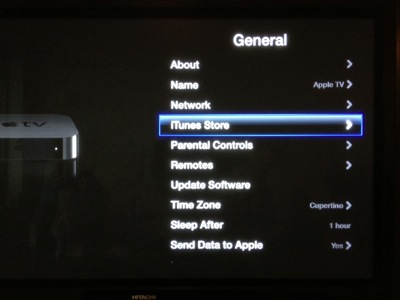
Now, go to the Settings, and go into General.

IMG_0721.jpg

Under Settings - General, you can select the iTunes Store.
IMG_0723.jpg

Very important step.  If you have US based Apple ID, your address must be in US.  So, you must first select the "Location" to set it to "United State"

IMG_0724.jpg

If you do not select United States, even if you have a US based Apple ID, you still will not see the Movie and TV menu.

IMG_0726.jpg

Then, you go back to "Sign In" page to sign in your US-based Apple-ID

IMG_0727.png

Key in your password.

IMG_0728.jpg

Say YES to remember password.

IMG_0729.jpg

After you have done it, you shoud see this on your screen.  The Movies, TV Shows and Music Channel.  And of course, if you got money in your account, you can buy those movies.  Some how these movies are of very high HD quality and the file size is much smaller.

IMG_0734.jpg

One more thing...

Always update your software.  Under General - Update Software.

IMG_0731.jpg

Update software usually take few minutes to download and another few minutes to update.  Very seamless.

IMG_0732.jpg

One Last Thing...

There are many Internet resources or google info that you can find for creating a US based Apple ID.  This is how.

http://www.ipadmalaysialabs.com/how-to-create-a-us-apple-id/

Very easy.

Once you have it, then, you can go to iTunes-Express to buy your GIFT VOUCHER.  If you really need to spent the money to buy Apps or TV Shows, etc.

http://itunes-express.web.officelive.com/default.aspx


Enjoy!