Showing posts with label MacOS. Show all posts

Tuesday, April 14, 2015

The New Photo App - My Experience So far

Date:  Apr 14, 2015

[Update]  Correction on Item 18.  I was inside “iPhoto Events” album within my Album under the new Photo App.  That is why all the Events are listed there.  Heng ah!

Last week, when you update your MacOS to 10.10.3, the new Photo app is finally available.

Apple has decided to replace iPhoto with the new Photo app.

They promise it will be faster, easier, and more make sense features.

So far, my experience is a bit disappointed.  There are some good features, but the pay off may be too big.

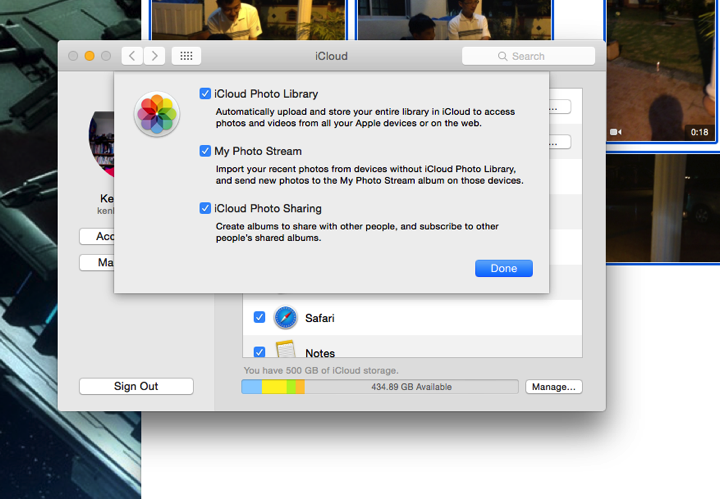
1.  There is this great feature.  You can now “upload” all your originals photos onto the iCloud.  Go to “Systems Preference”, “iCloud”, “Photo” and choose option, you will be given the option “iCloud Photo Library”.  Simply tick it, they will move your Photo Library onto iCloud.
Screen Shot 2015 04 14 at 5 32 58 am

2.  Before you do so, please check how much storage is your iPhoto Library or Photo Library.  If you are using a laptop/Macbook Air, most likely you have very few hard disk space, so you need to a) make sure you have space to migrate the iPhoto Library into Photo Library.  b) make sure you have enough iCloud storage space.  For me, I have to subscribe to the 500Gb iCloud. (You can cancel it any time).  If you are using iMac, you probably may want to check on your hard disk space too.  If you upgrade your iMac to SSD drive or Fusion drive, it is likely you do not have enough hard disk space too.  So, you got to do all these research before you migrate.

3.  Then, you launch the photo app, and go thru the migration.  After done, you go to Photo app preference.  There, under iCloud, you can select “Optimise Mac Storage”.  Or if you have the hard disk space, you can select “Download Originals to this Mac”.  For me, I am using SSD, so, I have to conserve whatever space I have.  Especially when my iPhoto Library is > 350Gb big.  When you choose this option, only “Thumbnail” photo will be downloaded onto your iPhone, iPad, or iMac.  When you select the photo, there will be a small percentage circle at the bottom right of the photo.  That means the photo is being downloaded, by how many percent.   

Screen Shot 2015 04 14 at 5 33 07 am

4.  My original iPhoto Library is 376.53GB.  After I migrated to Photo Library, it creates another library which is 438Gb big.  And I wonder what are the extra thing that is being created.  After I done that, I left with lesser than 10Gb on my SSD hard disk.  So, I got to get rid of the iPhoto Library.  So, I make a backup and move it to the Trash.  And I empty the Trash.  But after I have done so, my SSD hard disk reported on 75Gb hard disk.  ???? I deleted a 376Gb folder, and I only recovered back 60Gb space?  Something is fishy going on here.  But we will soon find out what is it.  I am still investigating this.

Screen Shot 2015 04 10 at 5 49 25 am

5.  So, I looked into the Photo Library folder.  I found a new “resources” directory that has 100Gb of space.  So, they created a “Moment” thumbnail files here.  That’s the extra 100Gb+ went to.

Screen Shot 2015 04 10 at 5 55 25 am

6.  I did a full scan of my system, and I have yet found where is my missing disk space.  Very mysterious.  At of this stage, I am missing of 300Gb of hard disk space.  Where does it go?  Where does it hide?    

Screen Shot 2015 04 14 at 6 03 17 am

7.  So, I keep using the tools to find what happen?  But It seems perfectly fine.  So, at the first place, how did Photo App converted or migrated my 367Gb photos given that my total space is 1Gb?  I really don’t want to think about it now.  hahaha.  It is so strange.  

Screen Shot 2015 04 14 at 6 09 04 am

8.  I checked again my backup drive, and it does have a full 376Gb old iPhoto Library on it.

Screen Shot 2015 04 14 at 6 14 09 am

Let’s don’t talk about that painful migration thingy… Let’s focus in some other things...

9.  You can add more share options now.  I love the “Evernote” add on.  So that I can now select any photos that I want to keep inside my Evernote.  

Screen Shot 2015 04 09 at 9 30 40 am

10.  I love that you can add Title, Descriptions, and Tag.  This is important, because, once you can do that, you can search for your photos.

Screen Shot 2015 04 10 at 6 01 40 am

11.  To delete photos now seems to be much much slower.  Once you selected the photos and you want to delete them, it usually takes 1-2 seconds to delete them.  Not sure why is it like that.  I am doing this on a SSD, so, I can imagine, doing it on the hard disk may be a bit slower too.

Screen Shot 2015 04 10 at 9 16 58 am


12.  After you select photos to delete, a Delete dialog will come up.  

Screen Shot 2015 04 10 at 9 17 34 am

13.  After I have turn on the “iCloud iPhoto Library”, my Photo app trying to upload my entire library onto the iCloud.  And after 2 days, it successfully uploaded about 3000 photos onto the iCloud.  Wait a minute, that is awfully slow!  I have 108K photos to upload, and it only uploaded 3K photos?  Let me calculate, that will takes almost 36 days to upload the entire library.  hahahahaha

Screen Shot 2015 04 14 at 5 49 37 am

14.  After I have turned on the iCloud Library, only iMessage can successfully attached the photos in my photo library without any problem.  That is because iMessage is Apple stock program/app.  Now, I have huge problem with my WhatsApp app.  When I try to sent a photo, it takes almost 1 minute to actually attached that photo into my WhatsApp message.  At first it is not doing anything at all.  You thought it is faulty or buggy.

15.  When you try to DRAG a photo from your Photo App on the iMac into the Desktop, or Finder Windows it works.  That is because it is Apple OS stock program.  Now, it does not work when you try to drag that photo and want to include into Vimeo, Youtube, or even my usual blogging App, i.e. MarsEdit.  It just won’t work.  So, a way to get around it, is to drag the photo onto the Desktop, or any Directory Finder windows, and then, from there, you drag it inside your App or your Web App.  I think it is a bug.

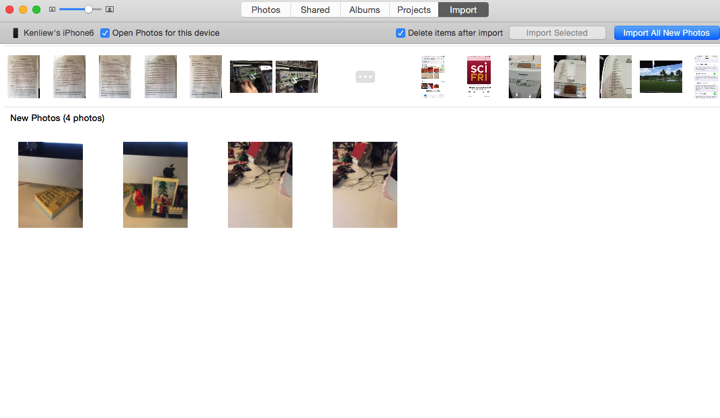
16.  When you plug in your iPhone, and you got new photos to import, you can click on “Delete Items after import”.  That will remove these photos from the iPhone.  If you forgot to click that?  Hmmm… you will have tons of photos on your iPhone and cannot be remove intuitively.
Screen Shot 2015 04 14 at 8 06 01 pm

17.  For example, these are the photos “Already Imported”, in the iPhoto App, I can select an option to “Remove imported photos from iPhone”, but here in the new Photo I cannot find that feature.  That is bad.  And the only way to do it is to go into your iPhone Photo App and select them one by one and delete.  There is also no way to have “Select All” button.  hahahahaha

Screen Shot 2015 04 14 at 8 07 13 pm

18.  My Photo Album is now a mix of iPhoto’s Albums & Events.  All those previously events are now placed in the Albums for me.  That is bad too.  Now, I have to one by one delete these extra Albums (Events) that I don’t want.  2609 Albums.  hahahaha.

Screen Shot 2015 04 14 at 8 11 35 pm

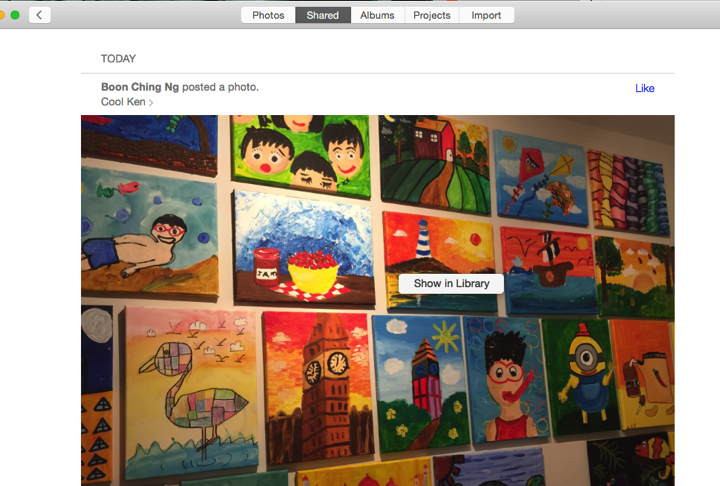
19.  Some one share photos using photo stream, you can select to “Import” it into your library.

Screen Shot 2015 04 14 at 8 17 57 pm

20.  Now, if the person sharing the photo to you is sharing an OLD PHOTO, the import function will place that shared photo into the correct date under Event.  It does not import as “New Photo”.  The problem will occur when you import and you cannot find where the Photo is located inside your Photo Library.

Screen Shot 2015 04 14 at 8 18 28 pm

21.  So, what you should do is to go back to the Shared folder and then right click the photo you just imported, and there will be “Show in Library” option appears.  click on it will bring you right to the Moment of that photo.  i.e. the correct date.
Screen Shot 2015 04 14 at 8 21 48 pm

After playing around with all these new settings here is my recommendation.

A.  Since Apple decided not to support iPhoto, so the best bet is to use the new Photo App.  Soon or later, you will need to migrate into it.

B.  I am not recommending to use “iCloud Photo Library”.  I am so stupid, at home, I already complaint and not using my iPhoto Library on my Synology.  And I have a Gigabits network at home.  I found it a bit slow, why I so stupid go and turn on the iCloud Photo Library and it has to use the public Internet, to upload all the photos onto the iCloud?  hahaha… everything seems so slow.  I don’t need all the photos in the library to be shared onto the iPhone or iPad.  

So, I finally after 3 days of testing the iCloud Photo Library, I turn off the feature.  And I will downgrade my iCloud back to lower disk space option.  (Yeah, they allow it).  And delete all the photos on my iPhone and iPad.  Turn off the iCloud Photo Library on the iPhone too.  And plug in my iPhone to the iMac and import those that has not been imported to my iMac Photo Library.

As soon as I have done this, my WhatsApp become fast again!  I am happy again!  hahaha

IMG 0838


Monday, August 15, 2011

My iPhoto is Eating Up All My Diskspace

Date:  Aug 15, 2011

After a short vacation, and synced all my photos into the iMac, I found my iMac hard disk space quickly dropped to less than 10Gb again.  Hmmm.... who is eating up my hard disk space?

Last time, I shared with you, how I move the iOS backup folder into my NAS (i.e. Synology), this time, let's try to see what other folders are growing on my iMac.

By using an App called OmniDiskSweeper, I am able to see where all my hard disk has gone too.

Screen Shot 2011-08-15 at 6.40.31 AM.png

As you can see clearly, out from my 280Gb hard disk on iMac, almost half of it has gone to iPhoto Library.  And inside this iPhoto Library, there are "iPod Photo Cache" and "Masters" which takes up equal size.  So, according to

Screen Shot 2011-08-15 at 6.55.25 AM.png

The Masters are all your original photos, i.e. your raw files.  "iPod Photo Cache" folder is where iTunes stored all the optimized photos for your iPod, iPhone, iPad.  It actually takes the original photos and optimized it for display on your iOS devices.  This is another culprit that will grow when you add your photo in.

Screen Shot 2011-08-15 at 6.55.13 AM.png

And sometimes the folder size of the iPod Photo Cache can be larger than your Masters folder.

Screen Shot 2011-08-15 at 6.55.34 AM.png

So, now I found out that what is the problem, the solutions becomes easy.

I have a Synology (NAS) on my network.  (i.e. you can also plug in "permanently" a USB backup drive), means you do not move the USB hard disk.  Or when you sync your iOS devices, you always remember to plug in the USB hard disk.

Step 1.  Copy all files together with the "iPod Photo Cache" folder to your Synology drive.  For me, it takes about an hour to move the 61.71GB files over to the NAS drive.

Screen Shot 2011-08-15 at 7.18.24 AM.png

Once you have done that.

Step 2.  Go to your NAS drive.  Right click on the "Ipod Photo Cache" directory you have just created.  Select "Make Alias".

Screen Shot 2011-08-15 at 7.21.33 AM.png

An "ipod Photo Cache alias" folder will be created.  This is a soft link that point to the "iPod Photo Cache".

Step 3.  Go to your Pictures folder, and then right click on the "iPhoto Library" folder.  You cannot double click on the "iPhoto Library" as it is a package file, which will launch your iPhoto when you double click on it.  When you right click, select "Show Package Contents".

Screen Shot 2011-08-15 at 7.23.32 AM.png

Step 4.  In here, you will see your "iPod Photo Cache" folder here.  Move it to the trash, and right click on Trash to "Empty Trash".  Before you do so, please make sure that you have completely copy everything onto your NAS drive.

Step 5.  Go back to the NAS drive folder, move (or drag) the "iPod Photo Cache alias" into your "iPhoto Library" folder.

Step 6.  Important!  Don't forget to change the "iPod Photo Cache alias" folder name into "iPod Photo Cache".

So, what you have done is to move the iPod Photo Cache folder to a NAS drive, and create an alias (or soft link) to it from the original directory.  So, when iTunes is syncing the photos, instead of sync it to your iMac hard disk, it will sync it to your NAS drive.

Once I did that, I have freed about 62Gb of hard disk space!  Yoohooooo.


Sunday, August 14, 2011

Antivirus @ MacOS - So Boring!

Date: Aug 14, 2011

NewImage.jpg

Yes, I arrived home after a few days vacations.  Have not been reading news, touching my iMac for soemtimes...

Suddenly, Adobe Installer screen pops up, wanted me to intall the latest FlashPlayer...

NewImage.jpg

So, without any doubt, i simply just click NEXT NEXT AGREE NEXT NEXT install...

This morning, when I woke up, and read this piece of news... I was shocked, oh dear, a trojan, my goodness, Aug 5, oh no... So, I quickly google and see what is this trojan about... So, this is a trojan that will hijacck your search results and then change your /private/etc/hosts file so that it gives you a fake google result page with lots of junkie ads....

Screen Shot 2011-08-14 at 9.05.28 AM.png

Oh, dear, we are "trained" to scan and kill the virus back in the old days when we are using Windows OS.  So, obviously, the instinct has not gone, I quickly search the net to find a cure, and then....

A check on the /private/etc/hosts, seems ok leh... does not seems to have any infections...

Screen Shot 2011-08-14 at 9.15.58 AM.png

Then I found this... Apple seems to know about this fake Flash player trojan, and has already.. apply a fix to its OS already... HUH???

Screen Shot 2011-08-14 at 9.09.21 AM.png

And Apple has a anti-malware system builded in that doesnot required manual updates.  So, Apple has already in fact corrected this malware.  I didn't know this!

Screen Shot 2011-08-14 at 9.09.42 AM.png

If it is Windows, I will have to spent time run scans try to isolate the virus, and so on, it could take some times...

So, that is why I say, Antivirus @ MacOS, so boring.  requires zero actions from human, the machine fixes the viruses... cool...

I accidentally installed the malware, I sleep, I found out news about malware, I google for a cure, but Apple already cure it as we speak... So boring.. hahahahhahaha

NewImage.jpg

Thursday, August 4, 2011

Who's Suck? Apple or UOB?

Date:  Aug 4, 2011

(This is a guide to show how to get UOB Internet Banking work on Lion)
Updates (Dec 5, 2011):  There is another work around, which I don't like is to change the Web User Agent in the "Developer Menu" to "iPhone" or "iPad".  This is to "fool" UOB website that you are surfing from iPhone or iPad, and some how I am not sure why the loading of Java applet is correct for iPhone or iPad or Firefox but not Safari on Lion.  So interesting!  If you are interested in this solution, please see here...

http://tech.2pd.us/2011/12/02/looks-a-tad-sloppy-a-solution/

(Below is the original blog)

I am very straight forward person.  On the first day, I "gung-ho" and installed the Lion.

NewImage.jpg

Then, I go to use DBS Internet Banking... It's OK

NewImage.jpgNewImage.jpg

I go use American Express... It's OK

Screen Shot 2011-08-04 at 7.05.47 AM.pngNewImage.jpg

I go use Citibank .... It's OK

NewImage.jpgNewImage.jpg

I go use Maybank .... It's OK

Screen Shot 2011-08-04 at 7.14.44 AM.pngNewImage.jpg

I go use HSBC .... It's OK

Screen Shot 2011-08-04 at 7.16.27 AM.pngNewImage.jpg

But, when I go to UOB Internet Banking.... Safari complaint "Applet not loaded properly, Please reload the page again!"

Screen Shot 2011-08-04 at 6.46.47 AM.png

What is this?  All the rest of the Internet Banking works fine except for UOB?

So, I switch to Firefox.  Thinking may be it's Apple Safari problem.  Same thing!!!!!

So, I search on the web.  And found out that Lion does not come with Java updates.  Some people are lucky, they get an update from the update page.  Some like us, and not sure why, we don't get it.  So, Apple is kind enough to provide a download page for Java.

Go Google and search.  "Java for Lion Macos site:.apple.com"

Screen Shot 2011-08-04 at 6.48.05 AM.png

Yeap, it should be listed on the first search link.  Click on that and click Download.

Screen Shot 2011-08-04 at 6.48.38 AM.png

Once it is downloaded, click on "Java for Mac OS X 10.7" on your desktop, or some will automatically launch it.

Screen Shot 2011-08-04 at 6.50.16 AM.png

Click on "JavaForMacOSX10.7.pkg"

Screen Shot 2011-08-04 at 6.50.04 AM.png

Click Click Click to install

Screen Shot 2011-08-04 at 6.51.08 AM.png

After you have installed it.  You found out that Safari still complaint!  It does not work!

Screen Shot 2011-08-04 at 6.55.21 AM.png

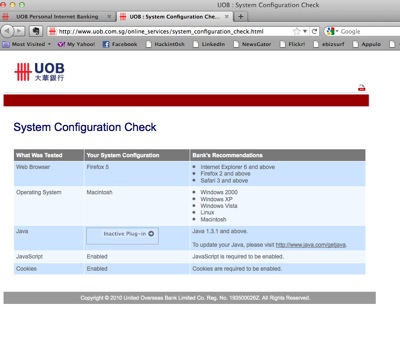
However, if you click on UOB Check Config site.  It said you have everything installed correctly.

Screen Shot 2011-08-04 at 7.18.59 AM.png

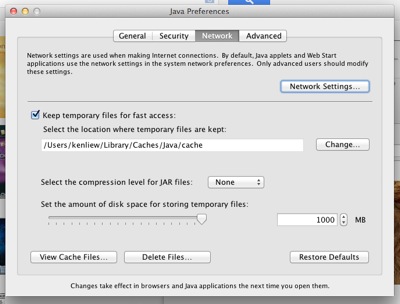
So, you look for alternative methods.... Try go and run Applications/Utilities/Java Preferences...

Click "Enable Applet plug-in and Web Start applications"

Screen Shot 2011-08-04 at 7.01.31 AM.png

To to the "Network Tab" of Java Preferences.  click on "Delete Files"

Screen Shot 2011-08-04 at 7.01.48 AM.png

Delete Applications and Applets, Trace and Log Files...

Screen Shot 2011-08-04 at 7.02.17 AM.png

Unfortunately, you are still stuck at the same thing.  This is what you have done so far...

1.  Install new Java for Lion (manually).

2.  Deleted all applets

3.  Safari does not work.

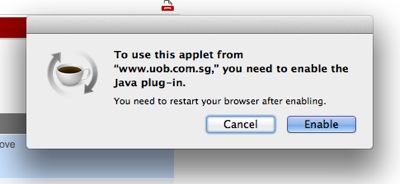
Let's give Firefox another try.  (You need Firefox)  Now, you go and click on the "Check Configurations" again on UOB using Firefox.  And surprisingly, you saw that there is this "Inactive Plug-In" with an arrow.  Click on that small arrow.

Screen Shot 2011-08-04 at 7.18.23 AM.png

A pop up box came up.  And you click ENABLE.  and then restart your Firefox.


Screen Shot 2011-08-04 at 7.19.18 AM.png

After all these... it finally works on Firefox with a new Java Applet enabled, on a Lion.

NewImage.jpg

Apple or UOB?

NewImage.jpg or NewImage.jpg


Here some guidelines...

1.  Every new release of Operating Systems SURE will have bugs.  This is a fact, but you have to face it.  If you install it on first day, then, don't complaint it.

2.  Apple rectified it with a new Java download on its website.  A bug in Software Update routines which does not download the Java properly.

3.  Apple's Safari did not manage to detect why that Applet does not work?  But Firefox managed to detected it.  Is it a checking routing (from UOB source code) bugs or is it the Browser faults?

4.  Most importantly, why 5 others big bank has no problem with it?  If it is a bug, then, all banks with java applet should not work!

5.  let's look at the following screen again... Did you notice the word "PIB Log Off".  HSBC uses the word "PIB" may be stand for personal internet banking.

Screen Shot 2011-08-04 at 7.13.16 AM.png

Now, you look at UOB page... PIB.OUB.COM.SG... hmmmm... also uses the PIB as short form.  I did not see other bank uses it.

Screen Shot 2011-08-04 at 6.55.21 AM.png


So, I am guessing, may be both HSBC and UOB uses some third party banking soft codes that references PIB as private internet banking.. so, if that is the case, why HSBC can do a better job?  while UOB web page got stuck?

6.  Look at the track record, how many banks have IOS App, who does not have it?

Then, you know who sucks!

NewImage.jpg

Oh... another short story... I knew about this 2 weeks ago, and I have already fix this on my MacBook Air.... Two weeks later, I am using my iMac at home... I thought, at most give the bank 2 weeks to fix the problem.  But after two weeks, to my shock... UOB has not fix this yet.  And yet, no advise was given (is there any?)... They are biggest bank in Singapore, earning the most money, and yet, the Internet banking facilities is... hmmmm....

NewImage.jpgNewImage.jpg