Showing posts with label TV Shows and Movies. Show all posts

Friday, September 18, 2015

Gadget: ViewQwest 4K TV Box & TVMC

Date:  Sep 18, 2015

[update:  http://sideloadfiretv.com/sideload-apps-amazon-fire-tv-windows/ is the tutorial for Windows to side load APK using ADB platform tools, the tutorial is for Amazon FireTV but it works similar on ViewQwest 4K.  I tried to find the USB function on the ViewQwest box, I believe they turn off, and they don’t allow you to install APK via USB.]

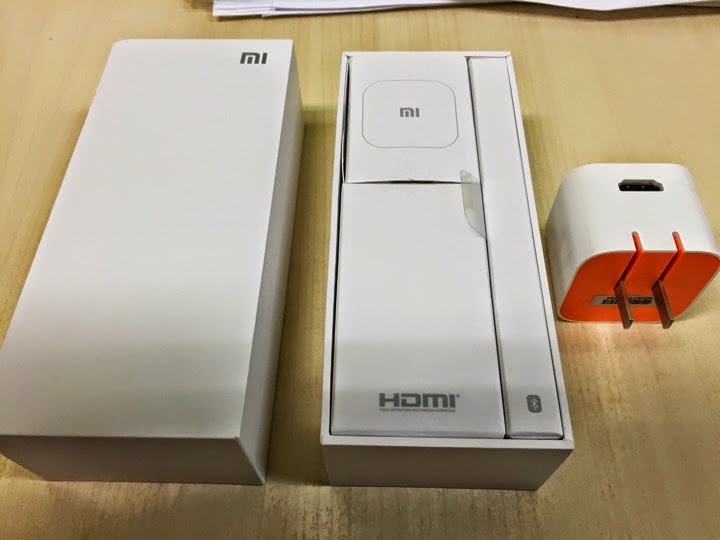
Yesterday, I picked up the latest ViewQwest 4K box.  After playing with Xiaomi TV box & Mini, Amazon FireTV & Stick, 10moon, Tmall TV box, etc etc.  I am not sure how to do a review on this box.  

To me, it is JUST ANOTHER ANDROID TV BOX that comes with a cool remote control.

But the selling point of this Android Box is, it comes with LOGIN APP to login to ViewQwest Authentication server, and hence UNBLOCK the geo-blockage from popular US based app such as Hulu & Netflix.  

And if you are non-ViewQwest users, like SingTel, Starhub, M1 or MyRepublic, you can make use of Viewqwest FreedomVPN on this box.   But bear in mind, the quality of the movie streaming is still depend on your own ISP network.  What this box does is it unlock the geo-lock for you.  So, if your ISP has lousy network peering with the content provider, although you can access them, i.e. Netflix, Hulu, Amazon, etc.  But you will still get lagging or buffering.

I don’t have SingTel or Starhub or M1 or My Republic Internet at home, so, I am not sure how well this function work.  

This blog is how to FACE LIFT the box.  HaHaHa… yeap, do plastic surgery.  hahahaha

IMG 0078

It comes with a very cool remote control.  Yeah, a remote control that has a MOUSE PAD on top.  So basically, you now can run some of the Apps (APK) that does not support the traditional few buttons remote control.  

It looks cool.

But in reality, I think use a Bluetooth Mouse is better.  HaHaHaHa.

IMG 0080

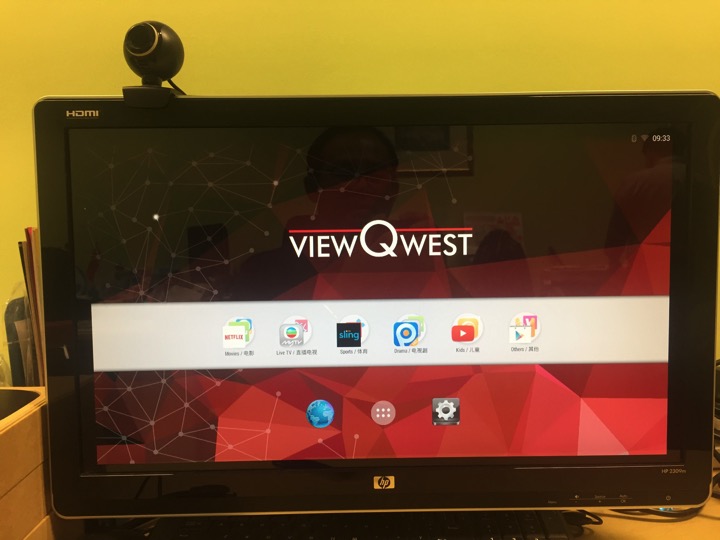
It comes with this UI interface.

And It SUCKS!  (Because is Android! hahahaha).

I spent almost one hour trying to figure out what to do.  And I am completely clueless.

Here are some of the problem I face.  

1)  Initially, if you just plug the HDMI cable into the HDMI port.  It does not do anything.  So, it might have some compatibility issues it seems.  But then, if you turn off the TV, and reboot the ViewQwest box, it actually connect to the HDMI and show it on TV.  

2)  Initially, I run WiFI connection.  Then, when I run some application, it complaint that the Network is not there.  Such as Netflix.  Then, I figure out I need to terminate the Netflix program.  But the Android is designed for touch screen, so with that remote control I not sure how to do it.  So, I plug in a mouse to do the job.

3)  Big time problem with USB.  I plug in a USB dongle for my mouse, then, the SOUND stop working.  Play any movie no sound.  Plug out the USB, sound resume.

4)  I plug in the USB, and I have no clue where to install third party APK from my USB thumb drive.  But then, something not work.

5)  I run Netflix, and it tells me to upgrade Google play store.  After upgrade, there are some error message here and there.

...

So, after 1 hour later, I GIVE UP.  So, I tried the following to do the FACE LIFT.  I had enough of this. 
IMG 0081

HACKING TIME

A.  SIDE LOAD APK onto ViewQwest 4K TV Box.

[For MacOS users] Download the platform-tools-osx.zip from http://www.mediafire.com/download/yum9gn1wdx855x0/platform-tools-osx.zip.  

(Sorry, this is for MacOS users only.  For Windows users, I am sure you can google and find out how to do it on Windows.  I have not been using Windows for many many years)

Install the platform-tools on any where you like.  (for expert only)

Go to your ViewQwest 4K TV Box.  Find out the IP of the box.  For example, mine is 192.168.1.29
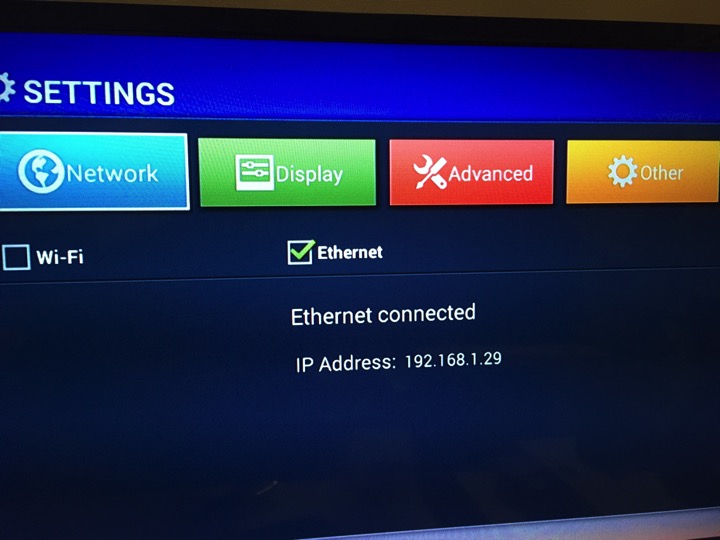
IMG 0174

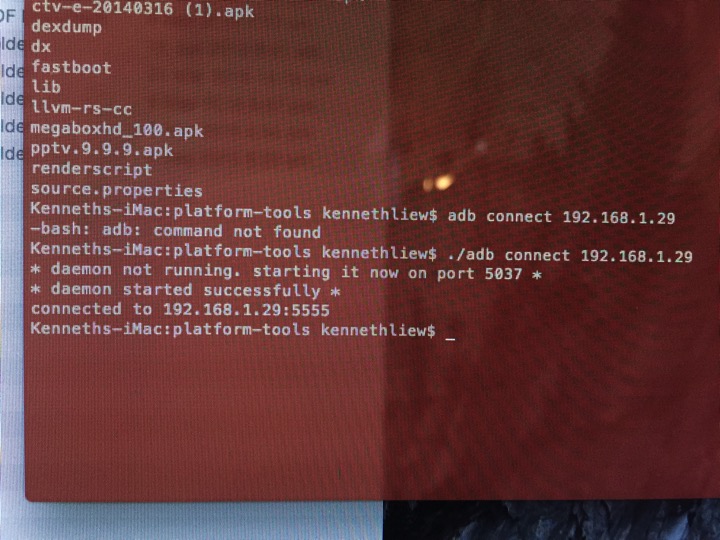
So, you go into the platform-tools directory and run the following command...

    ./adb connect 192.168.1.29

And this will connect your computer to the ViewQwest TV box.
IMG 0198

I have placed some APK files here for testing...

https://drive.google.com/open?id=0B_2LIa_dWu8sSzJiZDJ4TU9UaFU

Copy some of these APK into the platform-tools directory.

Then, you can install these applications APK files.

  ./adb install Shafa\ Market.apk

  ./adb install CloudTV.apk

  ./adb install tvmc-14.2.2-helix.apk

Your applications can be installed easily onto the ViewQwest 4K box.

Screen Shot 2015 09 18 at 9 29 32 am

And all you need to do is to click “Open”.

IMG 0201

And you have your usual Shafa Desktop running on the ViewQwest 4K TV box.  This is a much better UI.  And it is a familiar UI to all.

IMG 0203

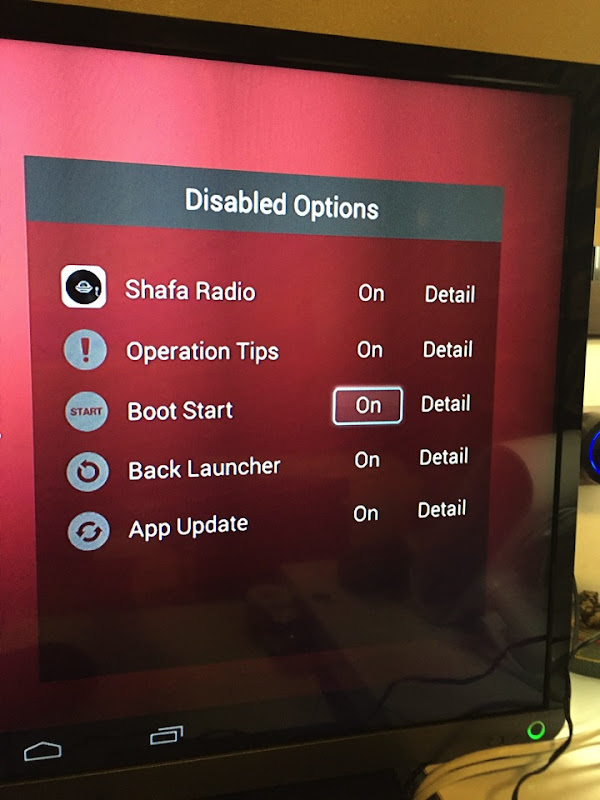
Turn ON the Boot Start.  So that whenever you reboot the box, it launch this Desktop UI instead of the ViewQwest one.
IMG 0211

Every time you press the HOME button, it allows you to select the launcher.

IMG 0215

Sometimes, this dialog box will come out.  So, makes sure you ALWAYS choose Shafa Launcher.

IMG 0216

The user interface is simple and easy to use.

IMG 0217

And the Interface is in ENGLISH.  Because the Android box OS is set to English language.  So, most of your Desktop app are in English.  And ViewQwest preloaded many apps for you.  So, those apps which might need to use a mouse pointer will be easily navigated using the ViewQwest Mouse Remote control.

IMG 0218

Here is the 2nd part of the topic.  Installing TVMC.

TVMC is an application allows you to watch TV and Movies streaming.

You can get all the info from here.

http://www.tvaddons.ag/tvmc-android/

You notice earlier, I have already side loaded it on to my ViewQwest 4K box.

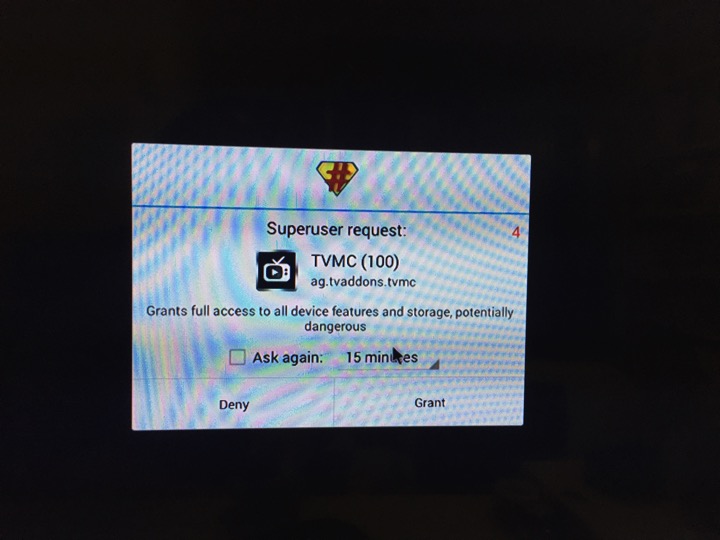
Click on Grant to install the App.
IMG 0237

It is a 5-8 minutes installation...

IMG 0242

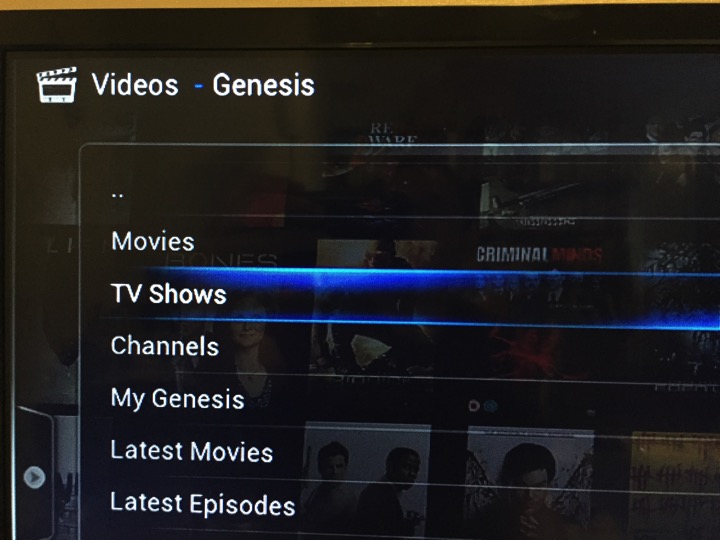
Once install, you get this screen.  Go select Genesis.

IMG 0247

Let’s say I want to watch a TV show.

IMG 0249

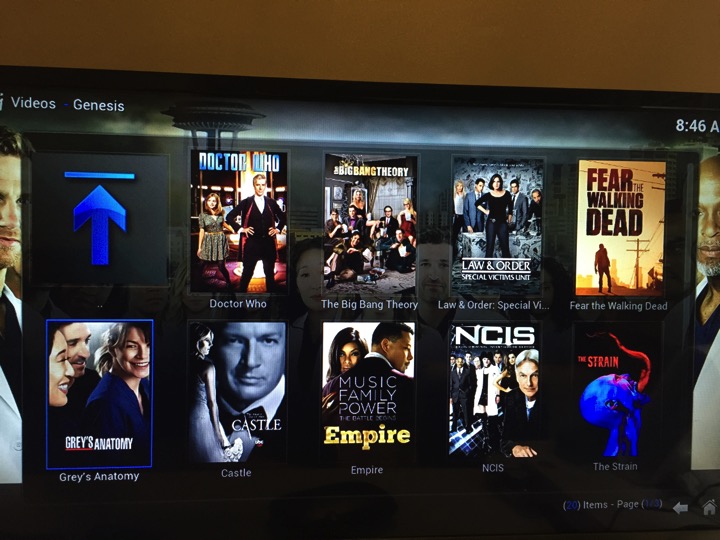
Select Returning TV Shows as I know the show I want to watch is Season 3.

IMG 0250

Browse thru the TV show.

IMG 0251

Click NEXT to go next page.

IMG 0252

I found the show I want to watch.

IMG 0253

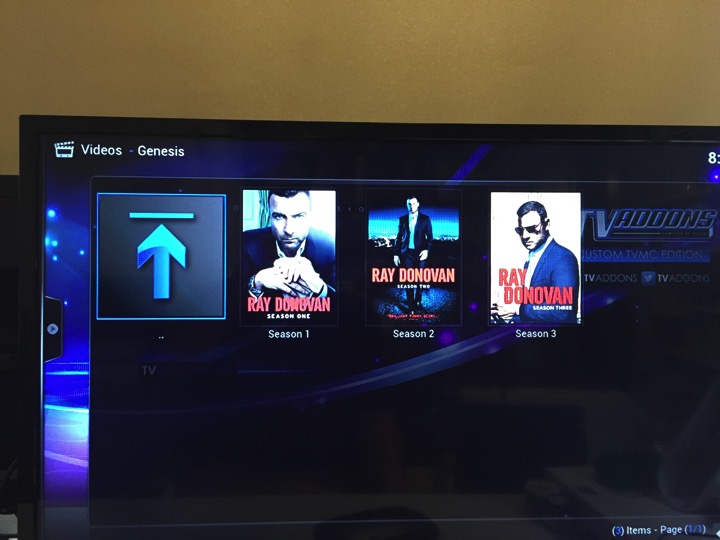
I found the show I want to watch.  Season 3.
IMG 0254

Go to the episode you like to watch.

IMG 0255

If it works, it says “Working…”.  If it does not, then, it will tell you No Streams...

IMG 0256

Choose the streams that works.  Many for you to choose and with different quality.

IMG 0257

And it runs.

IMG 0263

Summary.

1.  This ViewQwest 4K TV box is just another Android Box.

2.  What do you do when you have an Android Box?  You install Shafa Market.  I use ADB to install.  This is where you going to get your apps.

3.  It comes with a cool remote control.  With a small mouse pad.

4.  It has very sucks UI (KK Launcher).  Don’t recommend average users to use it.  So, install Shafa Desktop.

5.  It has English language.  

6.  Since it comes with mouse pad remote control.  You can run those Netflix and Hulu that need mouse input.  Korean Apk too.

7.  The box allows you to login into ViewQwest Freedom VPN and unlock the Geo-locked content sites.

8.  But beware, the Internet speed to these content sides pretty much depend on your own original ISP speed.  If it is slow, you complaint to your ISP.

9.  I feel that this box is like Minix box like that.  Nothing special.

10.  Since CartoonHD, MegaboxHD all close down.  So, the best alternative is to use the Kodi’s TVMC apk to watch it.  Use the Genesis stream.


Sunday, September 13, 2015

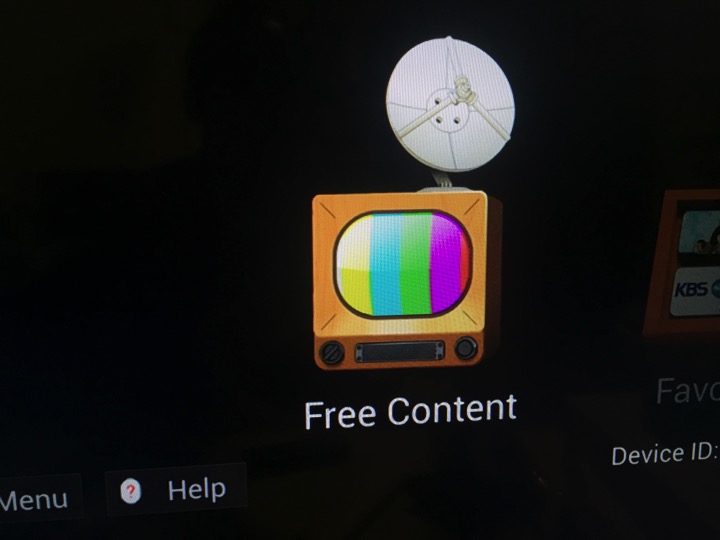
Cloud TV APK

Date:  Sep 13, 2015

This APK can be installed on any Android TV Set Top box, i.e. Xiaomi, FireTV, 10Moons, TMall, Minix, etc etc.

IMG 9948

You can pay for your content using this App, if you want to.

IMG 9953

The cost of it is from US$48 to $80 like that depending on which package you want to subscribe.

IMG 9954

For me, I just use the FREE CONTENT.

IMG 9951

There are just too many channels to browse.  So, one way to make it simple is...

GO TO AREA menu.

IMG 9956

SELECT Singapore.

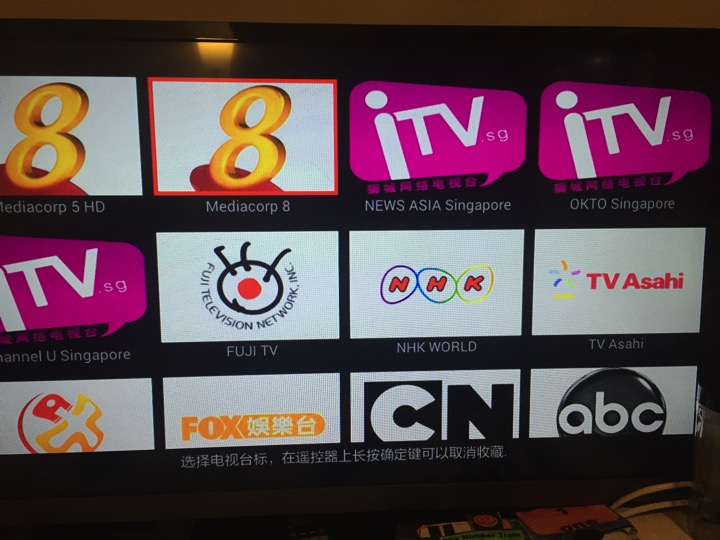
It will list out the available Singapore Channels.

IMG 9957

SELECT any channel you want to watch.  For example Mediacorp 5 HD.

IMG 9958

Make sure you can run that channel with no problem, no delay, decent speed, and picture quality is good or acceptable.

IMG 9959

Then, you go back to the channel listing, select that channel again, and HOLD your OK button on your remote.  Once you HOLD long enough, it will say “OK, this channel is in your favourites”.  So, you have just added a channel into your favourite folder.

So, you continue do this and adding those channel that works.

Go different country.  Like Malaysia, Hong Kong, United States, United Kingdom, and so on.

IMG 9961

This is my Favourites folder.

IMG 9952

I have all the Singapore channels, some Japanese TV channels.

IMG 9931

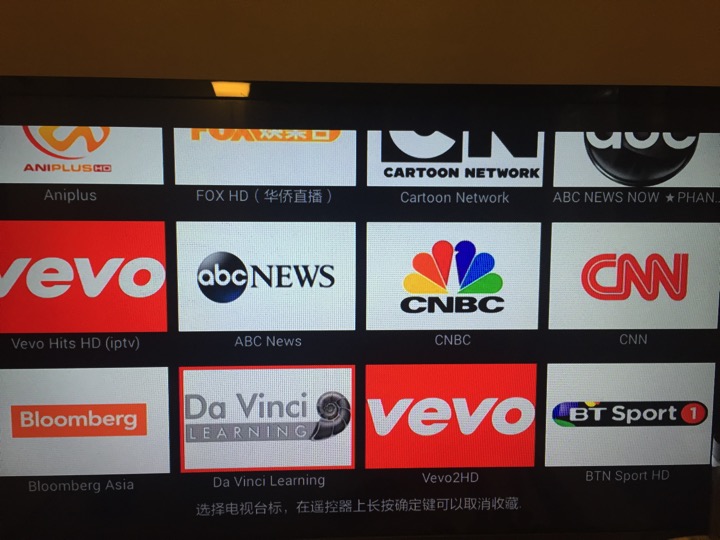
I have ABC, CNBC, CNN, Bloomberg.  Also BT Sport.

IMG 9932

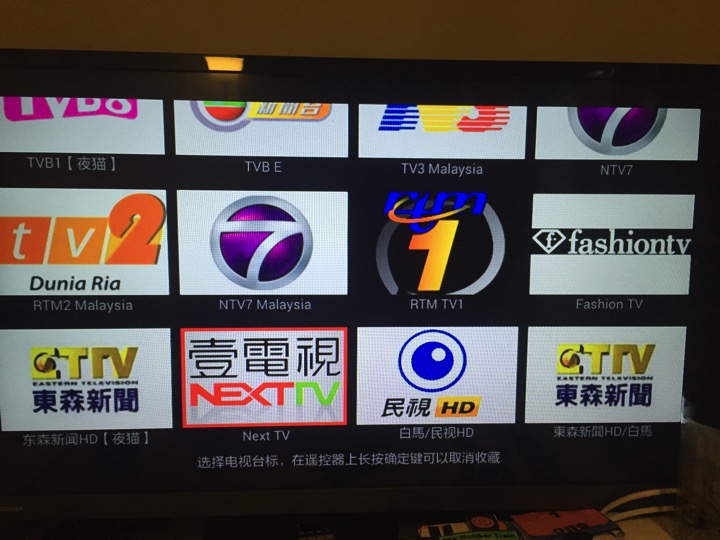
I have Hong Kong TV Channels and Malaysia TV Channels.

IMG 9933

Malaysia & Taiwan Channels.

IMG 9934

I also have some China TV channels. 

IMG 9935

Nowadays, I found no much different in terms of the performance from the pay content and the free content.

Some times these free contents will come and go.  But it is good enough.

At least I have a way to watch Singapore channels.

You got to have patient in browsing thru all your channels and pick the one that run best on your Internet Service Provider.

Not all channels work the same on different ISP.

So, depend on the ISP your have, you might have a total different list of channels that work best for you.

This is only one of the APK I have for watching live TV.

Saturday, May 23, 2015

Xiaomi TVBox Mini in Chicago

Date:  May 23, 2015

This is my Xiaomi TVbox Mini.  It is a small box.  Easy to packed in luggage.  Have HDMI cable, Xiaomi TVBox Mini adapter, and remote control.  I just bring the whole box.

IMG 1990

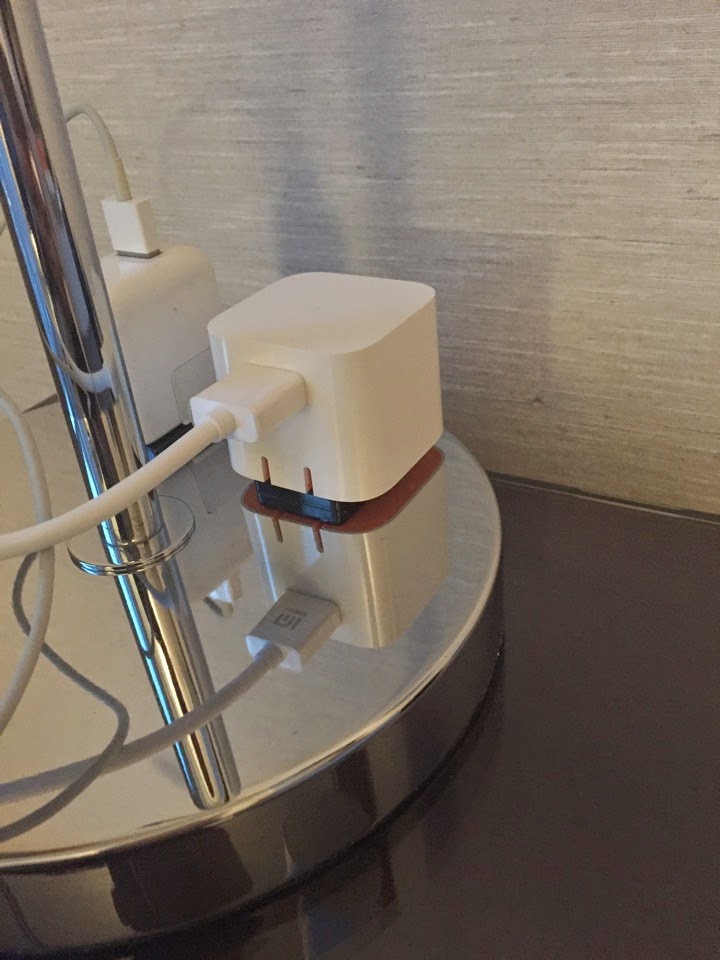
When I reached IVY boutiqu Hotel in Chicago.  I unpacked the box, and plug it into the electrical outlet.  PRETTY NEAT!

IMG 2373

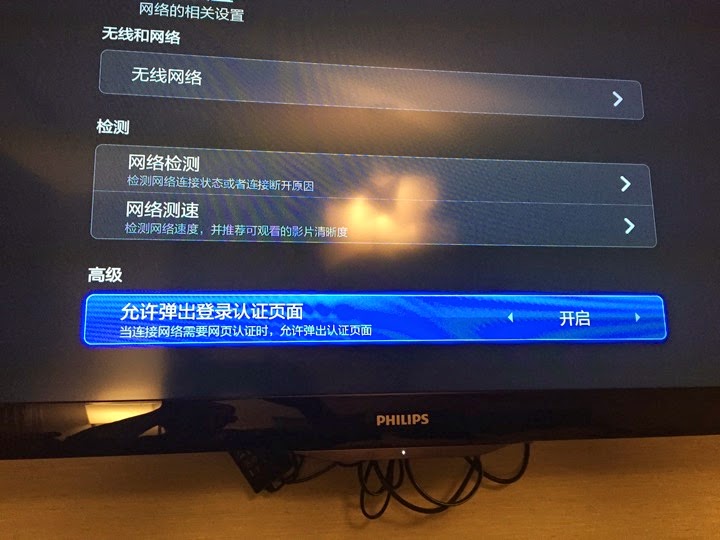
Now, in order to get it to work with the Hotel Internet.  You need to enable this option which is under the WiFi Network option in Settings.

This options allow the box to display POP UP web authentication page.  This is a new feature from Xiaomi.

IMG 2368

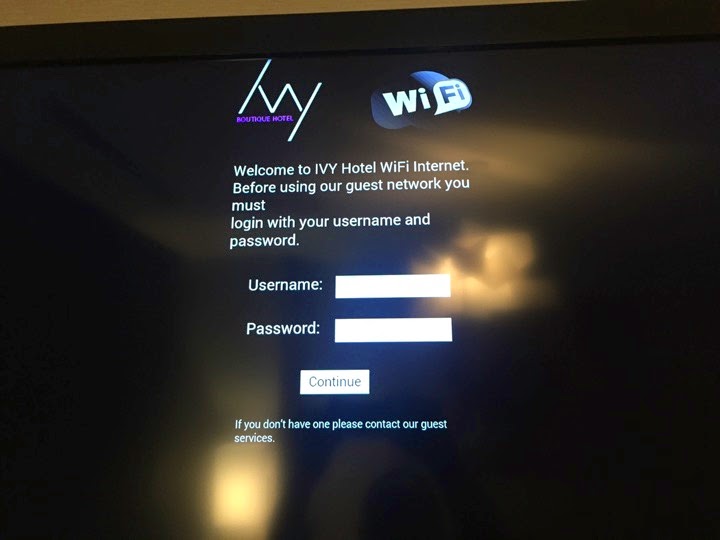
And as soon as I enable the above feature, the IVY hotel WiFi login page is displayed.  Key in the hotel WiFi login password.

IMG 2369

Let’s check the network.  And it works!  See that white HDMI cable line?  That connects to my Xiaomi TVbox Mini.

IMG 2370

Depends on where you are, some of the TV Movies App may not work.  For me in Chicago, most of the Geo Locked App does not work.

IMG 2469

One of the App that I am sure it will work is “Cartoon HD” app.  Although it carries a “Cartoon” word in its name, but it has all the latest TV and Movies show.

IMG 2470

And playing the show has no lag or buffering too.  It is fantastic!

IMG 2371

I watch “The Flash” and the “Arrows” in Chicago.  (latest episode of course).

Tuesday, September 23, 2014

Xiaomi TV 小米电视

Date: Sep 23, 2014

UNBOXING

It has arrived.

IMG 1183

No joke.  The TV itself and the sound bar weight 23KG.  Not to mentioned the subwoofer which is another 11KG.  So, the total of two box is 34KG.

IMG 1178

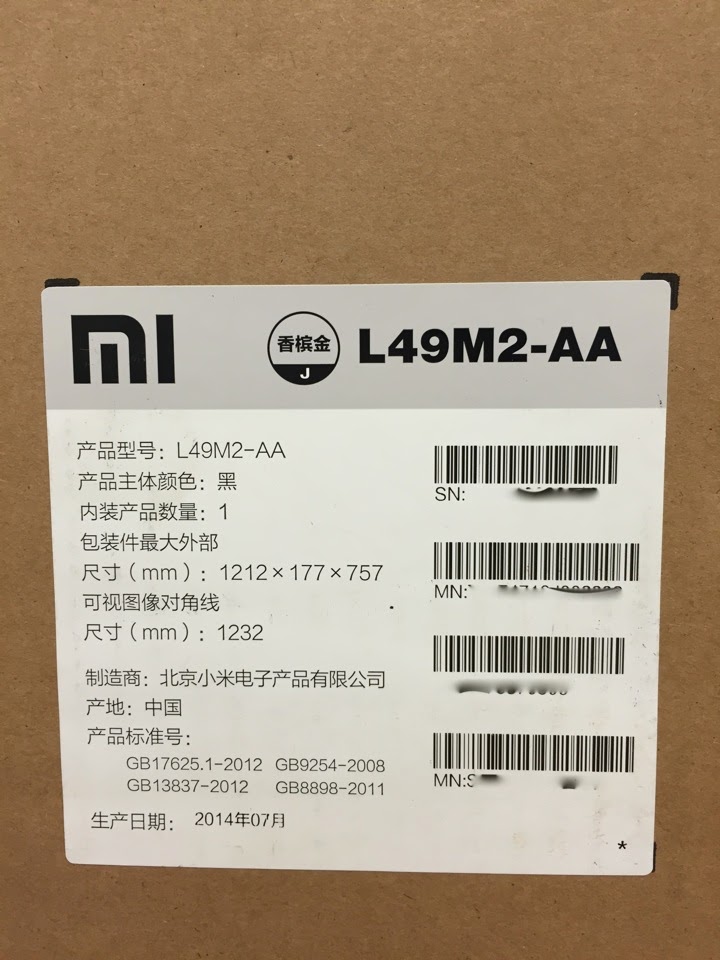
The dimension of the box.

IMG 1179

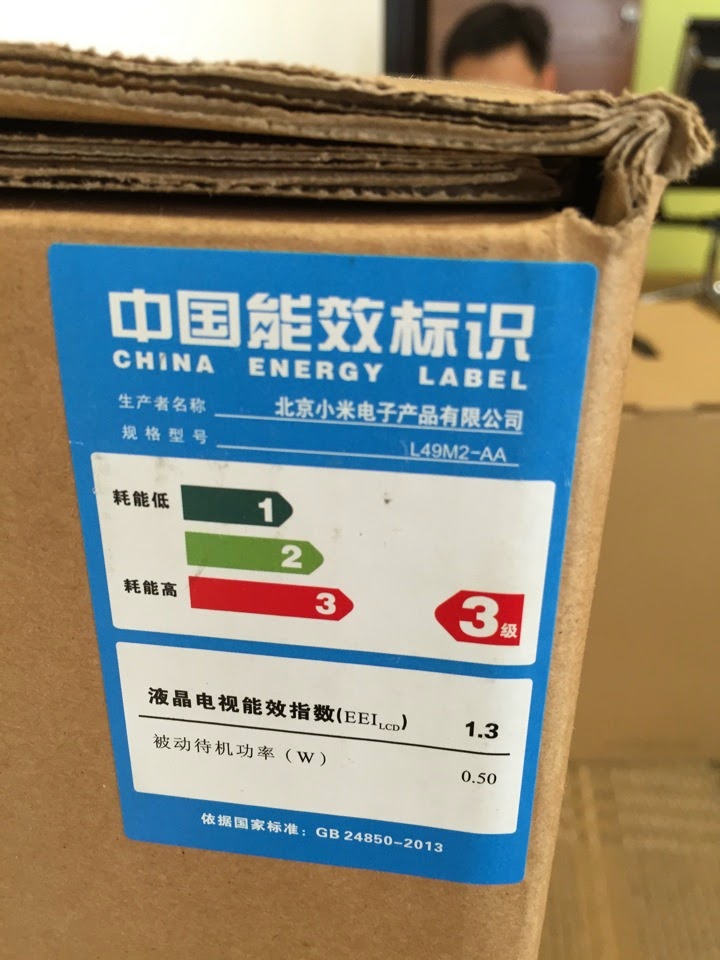
OK.  Xiaomi TV is NOT so green on energy savings.  It is rated #3 on the green energy labelling.

IMG 1185

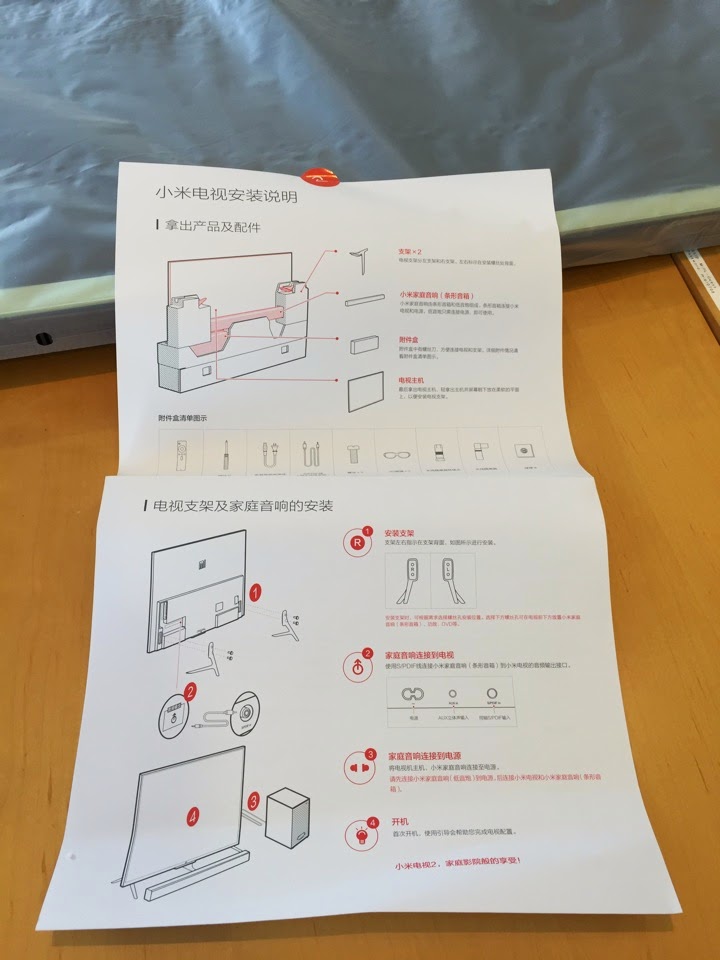
Very simple and clear instructions.

IMG 1186

The panel.  Very thin bezel.  But the finishing … err.. not as good as it looks.  

IMG 1187

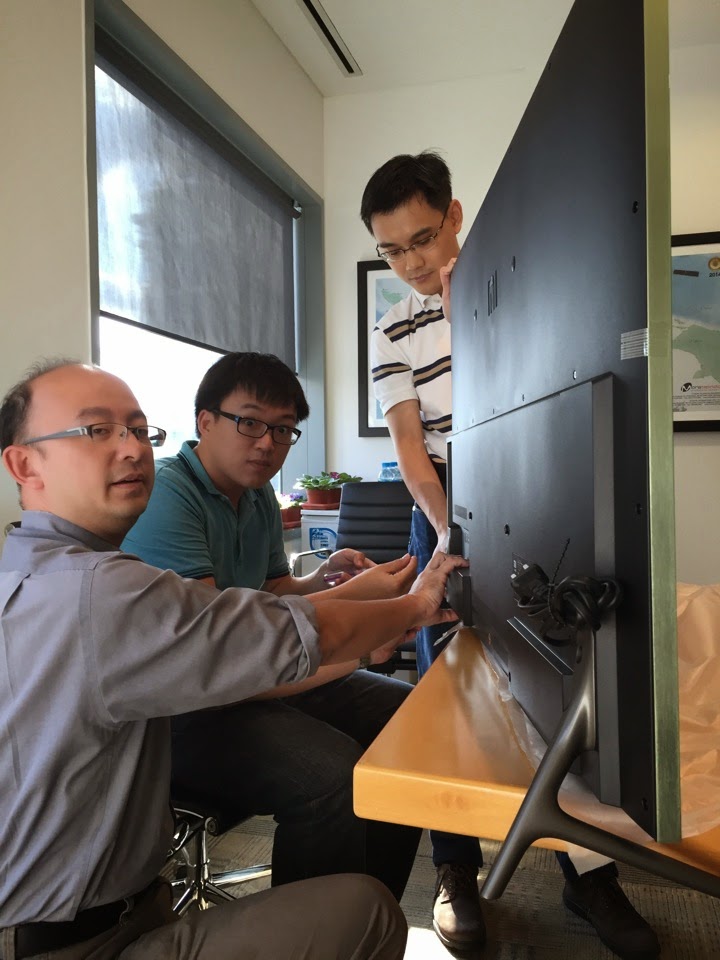
It takes few people efforts to assemble the legs.

IMG 1191

Woohoo… its 220V power plug.

IMG 1193

Immediately once you turn on, it will ask you to pair the bluetooth remote control.

Take note, the remote control has to be pointing very near to the bottom right of the corner there (very near) so that it can pair successfully.

IMG 1195

Follow by Wifi Setting.

IMG 1196

Network setup done!

IMG 1197

Next is to pair the sound system.

IMG 1198

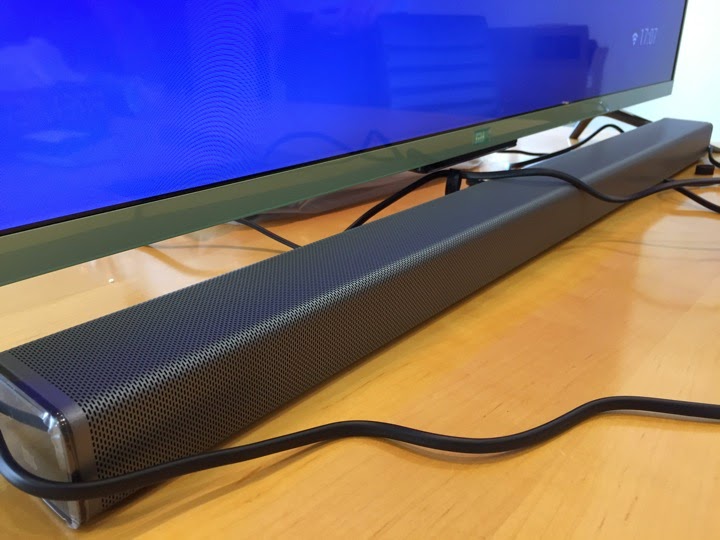
The sound bar looks like this.

IMG 1214

The wireless subwoofer.

IMG 1216

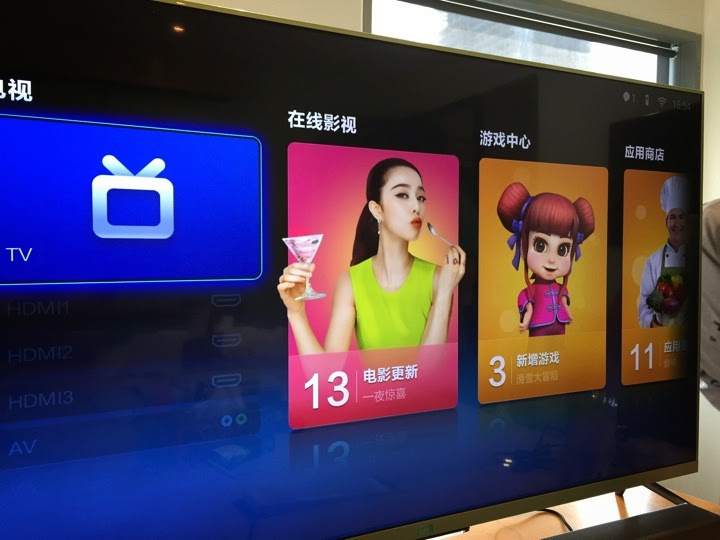
And welcome to Xiaomi TV user interface.

IMG 1202

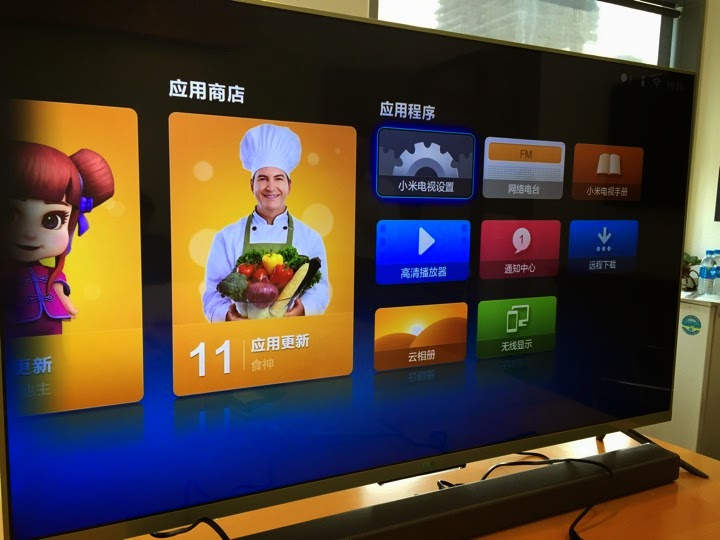
The applications is at the back.

IMG 1205

INSTALLING SHAFA GUAN JIA

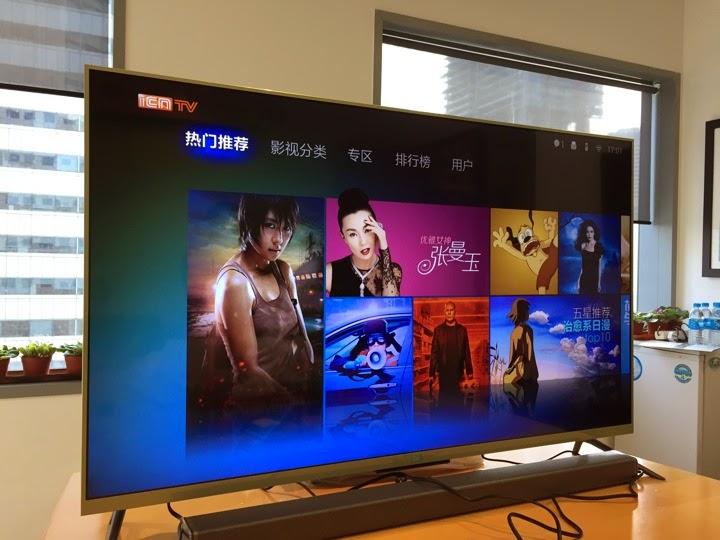
Let’s look at the stock iCNTV program.

ISP:                    VIEWQWEST

Network Type:   WiFi

Product:             FreedomVPN

Let’s go in iCNTV and choose a show.

It goes into CDN19.

And it stream without problem.
But the quality of the movie looks like SD version.

Please take note, you need to be on ViewQwest ISP network in order to watch this.

Note:  We don’t have SingTel, Starhub, My Republic and M1 network to test.  We know iCNTV does not work on most of all of them.  We are guessing, because the Xiaomi MiBox 3 does not work on these network.  So, we assume it cannot work.  You have to subscribe to ViewQwest & Freedom VPN in order to get it work.

The picture quality of the TV is nice.  And the sound quality boleh tahan.

IMG 1204

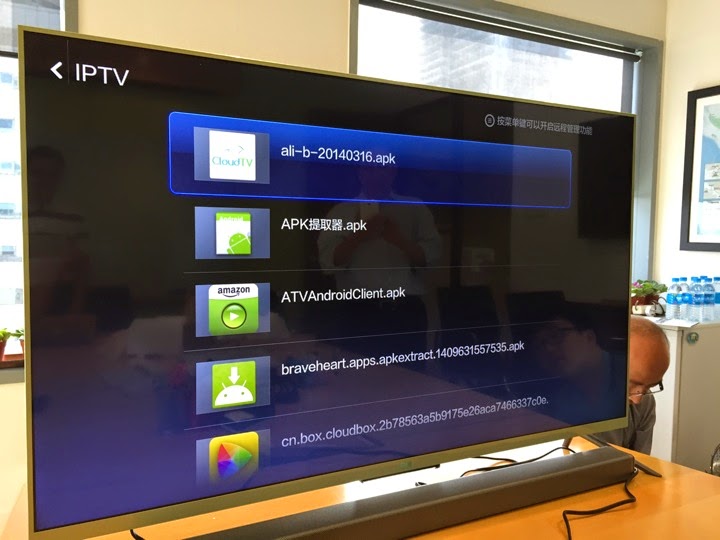
Let’s pop in a USB disk to install the Shafa App Store.

IMG 1206

OK.  NO NEED TO JAIL BREAK IT!

It works to install external APK files.

IMG 1207

Let’s install a couple programs.

IMG 1208

The TV looks good.

IMG 1210

Looks thin and sharp.

IMG 1220

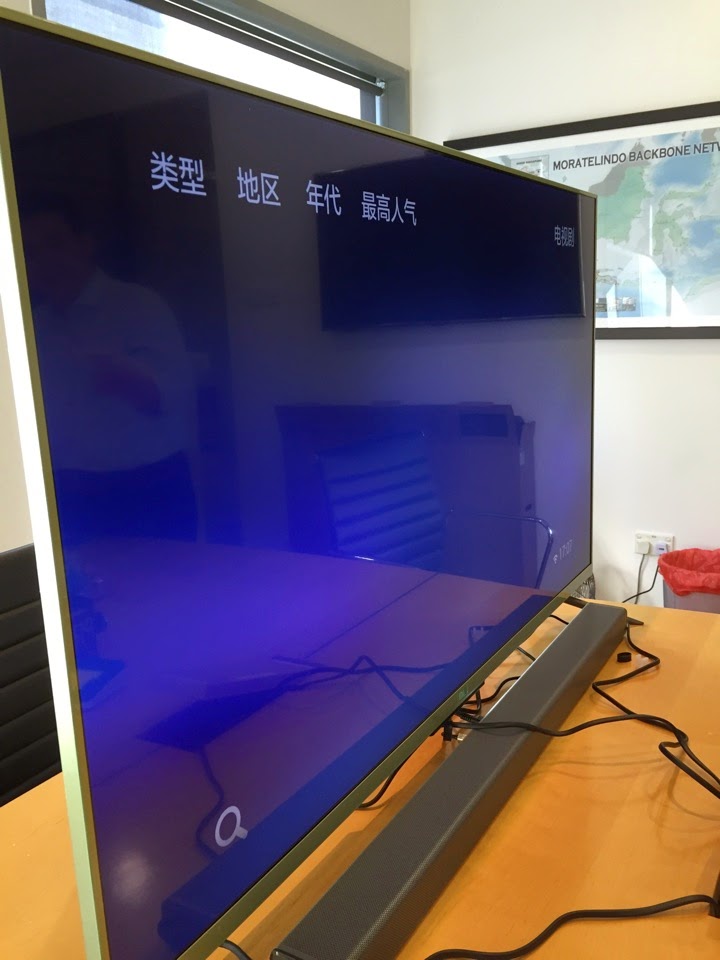
Let’s try out PPTV on Xiaomi TV app on ViewQwest Network.

Everything is very smooth.  No lag.  No buffer.  And can see the real real China version.  

Note:  If you are on SingTel, Starhub, M1, and My Republic, you will likely get “INTERNATIONAL VERSION” which does not have a lot of shows.

Let’s run some other show.

The real real China version will give you all the new show.  Gothem is just came out from the US a few hours ago.

Below the TV, there is a touch sensor.

It is very cool, you can select the TV control from here by touching that panel.

The rectangle TV box on the left screen is to show the TV source.

Usually if you plug in the Cable TV, it will show there.  Selecting it, will enlarge the TV programs.

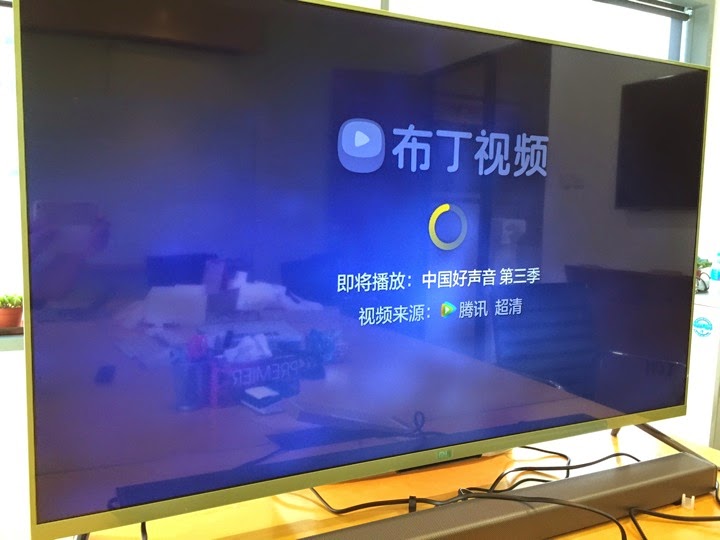
Install Pudding TV to watch China Voice.

IMG 1231

China Voice.

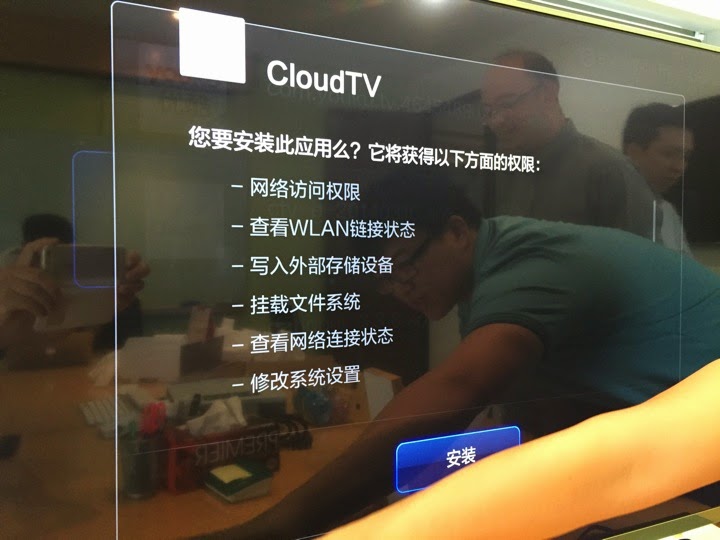
I also installed the Cloud TV.

Use this to watch Discovery, National Geographic, HBO and so on.


SUMMARY

1.  Xiaomi TV cost about RMB 3999 in China.

2.  It is about 34KG all together to ship it over.  It is heavy, no joke.

3.  The shipping cost can range from S$300 to S$600 for the shipping.

4.  If really want to buy, please go Taobao.  Or contact my buying agent, Amy Li.  cinagoods@hotmail.com 

5.  It is just like the Xiaomi MiBox 3.  

6.  The interface is a bit different.  But it works the same.

7.  You do not need to jailbreak it.

8.  You can install any APK / Applications by using USB.

9.  I am using ViewQwest, and it works superbly on the ViewQwest network with Freedom VPN.

10.  I am really not sure about other ISP.  But judging from the Xiaomi Mibox 3 performance, I am almost sure that the TV will behalf the same way.

11.  Use Guang Mang Ti Yu for EPL.

12.  Use PPTV to watch all fantastic show.

My recommendation, if you can find cheap ways to bring back, buy! 

[Updates Sep 26, 2014]

13.  It does not come with wall mount kit.  And I do not see any possibility of wall mount brackets behind the Xiaomi TV.  The plastic is a big soft behind, so, my guess is there is no wall mount for Xiaomi TV.  So, for those who is looking for wall mount, I don’t think you can.

IMG 1319

14.  Xiaomi suppose to be Apple of China.  They copy every thing from Apple.  But since Apple does not have TV, so, they can only come up with their own interpretation of the TV.

HaHahaha.  Look at the metal, it is 4 pieces of metal joined together.  The edge can be a bit sharp too.  Now, look at Samsung TV.  It is one whole piece of metal.  But for the price of RMB 3999, and you get Soundbar, Wireless subwoofer, and a sleek TV.  It is damn good liao!  So, please do not expect it has Samsung or LG quality, as those are selling 3 or 5 times more expensive prices.

So, please lower down your expectation.

IMG 1316

15.  You can also download the remote control App to control the TV.

IMG 1342

The App.

IMG 1343

16.  For this TV, we are very lucky that a friend of ours have arrange a container to ship his goods, and my friend actually asked if he can "lompang" the TV into his container.  So, the cost is minimal.  If you know any one is moving back from China using container, you can ask favour too.  Otherwise, 34KG will be very heavy lor.