Showing posts with label AirPort Extreme. Show all posts

Tuesday, August 7, 2012

Apple Airport Single SSID Wifi Zone

Date:  Aug 7, 2012

I know I know I am late, but it's better than nothing...

I used to have 3x SSID at home, i.e.  Mouse3, Mouse6, Mouse9, etc.  So, when i walk into my bed room, I will need to switch my IOS devices to another SSID in order to get the strongest signal.  

I bought another 2 AirPort WiFi APs… So, all together, I have 4 of them running at my place.  I put one at the server cabinet, one at the living room, another one in my study room and the last one in my bed room.

Screen Shot 2012 08 07 at 1 15 15 PM

All the while, if I mix and match other access points, when I go into the bed room, somehow, it still hang on to the access point in the study room, and the signal becomes very weak.  I need to manually switch it to the bed room one to ensure I have "high speed" going into my IOS devises such as iPhone or iPads and Apple TV.

And when I walk into the Study Room, my iPhone change to connect the Airport in the study room.  When I walk into the bed room, it actually switch to the Bed Room's Airport.  I am guessing that the 4x AirPort all work together to serve the iPhone, there should be checks on who is the strongest AP and it will automatically switch to that strong AP.  I never run single SSID before, so, this is new to me.  So, I am very happy about this!

Screen Shot 2012 08 07 at 1 28 01 PM

Cool!

Friday, October 28, 2011

How To Optimized Apple TV2 for Air-Play Mirroring

Date:  Oct 28, 2011

AirPlay Mirroring is actually a big thing.  It allows you to mirror your iPad2 screen or iPhone 4S screen onto your big screen TV.

NewImage

To do that, you need a Apple TV 2.  It is cheap!  Only US$99.  It is worth it if you buy this for only doing AirPlay for your office or at home.  It ties to an Apple-ID.  So, if your Apple-ID is Singapore based, then, you will not get the movies or shows.  You can only use it for Slide Shows or your own converted MP4 movies.

NewImage

But a lot of people forgot about Apple TV 2 will need Wireless to perform AirPlay Mirroring.  So, your WiFi at home must be solid in order for it to have optimal mirroring.  Means, no lagging.  I used to hook at my Apple TV to my network cabinet which is 10 meter away.  But the performance is lagging.  After troubleshooting… I found out that it was my Internal cabling from the network cabinet to the TV console area SUCKS big time.  So, I did the following Network Improvement Plan.


Screen Shot 2011 10 28 at 10 32 05 AM

As you can see, I actually placed my AirPort Extreme just beside the Apple TV2, so that both of the devices are connecting using Gigabits Network with just a Cat6 cable.

And from the Apple TV, you actually hook up your TV using HDMI.

So, now, with the AirPort Extreme running 802.11n Wifi, it can pump up to 300Mbps max (in theory).  So, you are sitting in front of your TV, and you now can use your iPhone 4S or iPad2 (with A5 Chip) to do AirPlay Mirroring.

IMPORTANT NOTES

You will only allow iPhone 4S and iPad2 to connect to your AirPort Extreme.  If you have older Wifi devices, such as a very old laptop, or a old Internet Radio, DO NOT allow them to connect to this AirPort Extreme.  As these devices probably has 802.11b or 802.11g Wifi protocol.  And AirPort Extreme will downgrade its Wifi tech to match these protocol.  So, if you have one single 802.11g there on the network, all your iPhone 4S or iPad2 will be dragged down by this culprit with slower Wifi Speed.

After I have done these changes I no longer see the lagging on Real Racing 2.

In future, there will be a lot a lot of AirPlay Mirroring game available.  With its Gyroscope movement to play the games, you will be having a different experience playing games on TV.

Your son now can play Angry Birds on iPad2, and projected it to the TV.  So that every body can see what he is trying to do, so, playing games now longer a one person job.

You can use AirVideo Server, to play movies stored on your PC/Mac or NAS.  Very cool.  This is how I watch Movies now.  On Youtube, the screen will automatically optimize to full screen.

There are much more to do.  :)  Think about it!

Gadget Playoff: Apple Airport Extreme Vs. ASUS Black Diamond

Date:  Oct 28, 2011

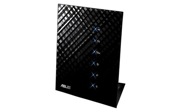
This is the two wireless access point I have at home.  Let's compare their performance.

Asus Black Diamond RT N56U VS.   Apple AirPort Extreme 4

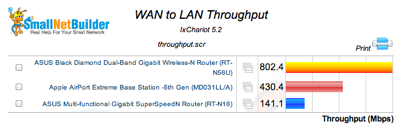
1.  WAN to LAN Throughput.  This router is connecting to your Internet Provider.  And it shows how fast the top speed it can handled.  ASUS is clearly superior in this as its processor are much faster and can handle much more.  Both devices has GE ports.

Screen Shot 2011 10 28 at 9 39 12 AM

2.  LAN to WAN Throughput.  This is important where the outside Internet content how fast can they sent to your network.  Clearly, ASUS is double the speed of Apple.

Screen Shot 2011 10 28 at 9 39 26 AM

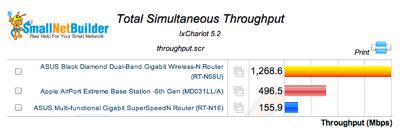
3.  Total Simultaneous Throughput.  The throughput seems impressive.  Not sure what does it mean.

Screen Shot 2011 10 28 at 9 39 38 AM

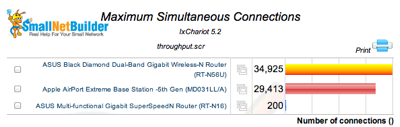
4.  Maximum Simultaneous Connections.  I think this is the TCP IP Sessions.  Actually Apple is not far behind.

Screen Shot 2011 10 28 at 9 39 57 AM

5.  Average 2.4Ghz Downlink Throughput.  Again, Apple is not behind of ASUS.

Screen Shot 2011 10 28 at 9 40 11 AM

6.  Average 2.4Ghz Uplink Throughput.  Apple in this case is also not far behind,

Screen Shot 2011 10 28 at 9 40 26 AM


Conclusions:

A.  ASUS Black Diamond Router definitely stay behind SingTel Fiber ONT.  That is because I want to ensure the LAN-to-WAN and WAN-to-LAN at the top speed.

B.  Apple Extreme is to move to beside Apple TV.  This is to ensure I have very good speed on Wireless connecting to Apple TV with minimum Cat6 cable length.  This is to ensure Air-Play capability is optimum at my place.  And now, when I played Real Racing 2 or Chopper 2, I don't see much lagging anymore.

:)

Sunday, August 21, 2011

Network Performance (1) - Wireless Comparing

Date:  Aug 21, 2011

I found a good benchmark tool from the Synology web admin pages.  Let's learn about our WiFi signal using this tool.

Synology

It is called "Resource Monitor".

Resource Monitor

The resource monitor basically runs the monitoring to monitor the Synology Harddisk.  It monitors CPU, Memory usage and Network Flow.

Resource Monitor Screen

So, with the Synology connecting to my Cisco SLM2000 managed switch at 1000Mbps port speed.  The Synology will always be "constant" or "fixed".

Today, the matter subject is two of my Access Point.

1) ASUS Black Diamond who is connecting directly to the SLM2000 switch.

2) Apple AirPort Extreme who is connecting to the same switch but it is located in my study room, which is connecting by a cat6 internal wiring.  Bear in mind, the cat6 internal cable should give greater throughput then wireless itself and it may have some distant losses there.

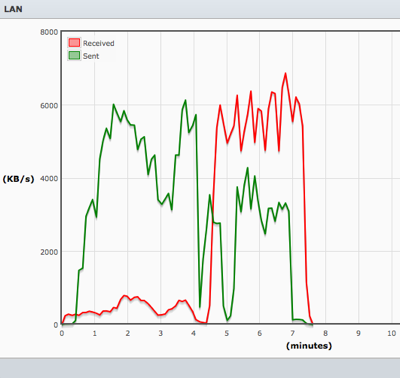
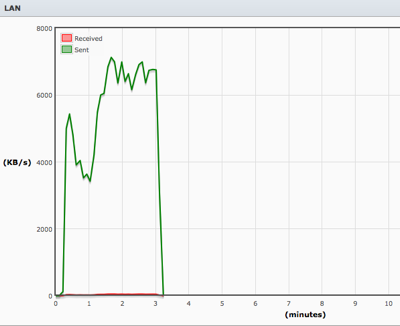
Here is the result.  I am transferring a 939.4MB movie file, i.e. "2012.480p.mkv" to and from the Synology onto my Macbook Air with SSD harddisk.

Test A.  The file is downloaded onto the laptop at the speed close to 8000KB/s.  This is equivalent to about 62.5Mbps.  (8000KB/s / 1024K/M x 8b/B = 62.5Mb/s)  I am connecting to Apple Extreme which is 0.5 Meter away from my laptop.

Observations:

Here you notice that the file transfer rate is high at first, about 14000KB/s (about 109.375Mbps) but then, it actually drop back to 8000KB/s.  This is WiFi characteristics.  The signal strange can change even during a stationary position.  It all depends on how the signal amplifies and bounced back from walls, as well as any other people using the WiFi device.

Also, this Apple Airport Extreme supported 802.11N.  So, on the paper it says 300Mbps.  And you will never get that speed.  See, the top speed we got is 109.375Mbps.  (I have done a couple of times, result is similar).

Mouse3 near

Test B.  Then, at the same location, I switch my WiFi to ASUS Black Diamond which is located beside the switch, and it is far at the other end of the study room.  Which is about 15 Meter away.

Observations:

Again, ASUS Black Diamond is a 802.11N, and with a distant of 15 Meter away, the connection actually stable at around 6000KB/s (about 48.875Mbps).  Both upload and download seems to be consistent.

Mouse9

Test 3.  I move my laptop to 0.5 Meter away from ASUS Black Diamond.

Observations:

As you can see, the transfer rate is about 58.59Mbps (7500MB/s).  ASUS Black Diamond, has similar or slightly lower performance then Apple Airport Extreme in terms of WiFi-to-LAN or LAN-to-WiFi performance.  If you recall, the ASUS Black Diamond is superior in LAN-to-WAN and WAN-to-LAN performance.

Mouse9 near

Test 4.  Now, At 0.5 Meter away from the ASUS Black Diamond, I switched the WiFi back to Apple Airport Extreme which is about 15 Meter away.  And then, about half way, I walked back to the Study room with the laptop and sit down eventually beside the Apple Airport Extreme.

Observations:  As you can see, when I move, the signal strength got stronger, and managed to increased from 4000KB/s to 7500KB/s.  But do notice that, when you move further away, Apple Airport Extreme tends to drop to quite low.  (i.e. 4000KB/s to 7500KB/s).  But for Black Diamond, it fluctuated from 6000KB/s to 7500KB/s).

Mouse3 far then near

So, with this simple test, as a conclusion,

1)  To determine a good AP (Access Point), the Signal has to be consistent as possible, while you are on the move.  Some AP is very good when you are near.  Some, is fluctuate at higher differences.

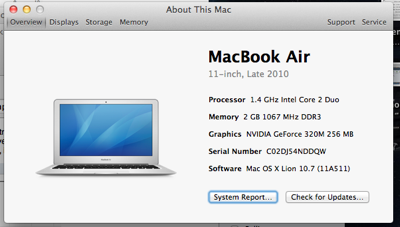
2)  You have to choose the best location for your Wifi.  To do so, click on "About the Mac"

Screen Shot 2011 08 21 at 8 28 23 AM

then, click More Info

Screen Shot 2011 08 21 at 8 28 31 AM

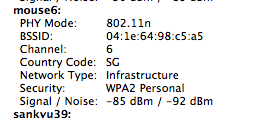
Then, click "System Report", then select "Wi-Fi" under "Network" you will find your signal strength.  As you can see, the signal strength for Mouse9=ASUS Black Diamond which is 15 meter away is -73dBm / -91 dBm (noise)

Screen Shot 2011 08 21 at 8 29 34 AM

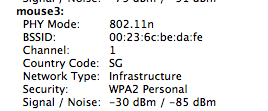
Scroll down, and you should be able to see all your others WiFi Access point at home…  Such as Mouse3 = Apple Airport Extreme which is 0.5 meter away.  Has -30dBm / -85dBm Signal and Noise.

Screen Shot 2011 08 21 at 8 29 47 AM

Just look at another AP I have, which is the Apple Airport Express which is located inside my bedroom, with a door and wall blocking where I am now.  The signal is even worst.

Screen Shot 2011 08 21 at 8 29 55 AM

What is dBm?

All numbers are given in decibels (dB) and are expressed as negative numbers.

Smaller numbers i.e. 10dB, is more strength than -90dB.

Signal -> Low is good.  i.e. -10dB is better than -85dB.

Noise -> High is good.  i.e. -85dB is better than -10dB.  (lower noise)

For example, if you have

Signal = -30dBm

Noise = -85dBm

SNR = Signal - Noise = -30dBm - (-85dBm) = 55dBm (SNR is Signal Noise Ratio)

Signal Quality = Signal/Noise X SNR = -30dBm/-85dBm x 55dBm = 19.4% Signal Quality

The higher signal quality the better.

Here are some Myths about Wi-Fi Interference.

It is a nice reading from Cisco, to understand more about Wi-Fi interference.

http://www.cisco.com/en/US/prod/collateral/wireless/ps9391/ps9393/ps9394/prod_white_paper0900aecd807395a9_ns736_Networking_Solutions_White_Paper.html


Wow, Microsoft also have good documents to teach people how to improve their WiFi at home.

http://www.microsoft.com/athome/setup/wirelesstips.aspx


Some Wiki about WiFi.  You will find out from 802.11, there is only 3 REAL Channels.  Although they always claims that there are 11 channels.  Out of the 11 channels, only channel 1, 6 and 11 are REAL channels, and the rest are somewhat overlapped.  And thus, more interference will occurred.  But bear in mind, all the AP vendors knows that too, and they will tends and try to use 1, 6, 11 too.  So, there is no real solutions to get around this but to trust your AP intelligence to provide you the best channel.

http://wireless.wikia.com/wiki/Wi-Fi


Wednesday, June 1, 2011

My Home Fiber Network - After Revamping

Date:  June 1, 2011

Mug_Everything_Works_With_Caffeine_590x400-200x130.jpg

Ever since I bought the Cisco Linksys SLM2008, and link it after the ONT, I am very satisfy with my home Fiber Network.  Everything seems to work now.  And Everything Works With Caffeine!

Here is how my network looks like now...

My Home Network NEW.png

My MIO TV Works!

As you can see the biggest benefit out of this revamping exercise is... My MIO TV finally works after 1.5 years since it is cold storage in my store room.  I finally can have sport channel now.  I can watch ESPN Sport News too.  And it does not freeze any more.

So, the trick is, I uses an extra set of Aztech HL280e Powerline Home Plug (A technology that uses your home power line at home as a media to transport IP data) to trunk the traffic from ONT directly to the Singtel 2Wire 5012NV router.  By doing so, I am running very clean pipe from the ONT to the MIO TV.  So, now I am suspecting that my internal Cat6e fiber from the data cabinet to TV console area are bad.

And YES, I have found the only usage for SingTel 2Wire 5012NV is to provide IPTV for the MIO TV console.  :)

My AirPort Extreme/Express Works!

The ONT connects to my Cisco Linksys SLM2008 managed switch which has VLAN 10 tagged.  So, whatever behinds it can see the tagged traffic.  i.e. my DLink DIR-655 AP router actually can get another set of Public IP from SingTel.  And then, I daisy chain two DLink GE switch behind, and my AirPort Extreme / Express connecting to it are able to interoperate with the DIR-655 AP router.  No longer I need to set static IP on all my wireless devices, and I can also see each wireless segments.  Unlike before.  That 2Wire 5012NV is really crappy.

NewImage.jpg

Bye Bye Singtel's 2Wire 5012NV

Date: May 31, 2011

This article is to teach you how to dump Singtel's 2Wire 5012NV Router for your Internet High Speed Fiber Broadband.  This is for those people who ONLY needs Internet at home, and no need to have MIO TV at home.  Although SingTel always bundled both together, means, they give you FREE MIO TV.  But still, I will keep on researching to see how to make it work for MIO TV.  Stay tune.  For now, only for Internet uses.

Singtel.JPG

1.  What do I subscribe?

I had my fiber Internet for almost 2 months now.  I have been enjoying the high speed internet very much.  I had the following plan from SingTel...  At this home, Internet is important as almost every night there are teleconference to US, Europe using collaboration tools such as WebEx.  What I had before is a 15Mbps High Speed ADSL2+ Plan.  So, upgrading to the 50Mbps will give you true 50Mbps LOCAL download, 25Mbps LOCAL upload, and real 15Mbps International download.  I have been testing it, and so far, it is a true upgrade for me.  As for MIO TV, it never work at my home, it freezes every 20 seconds or so.  So, at this point, I don't care about MIO TV.  But with the method described below, may be it will also work for your MIO TV.

Screen shot 2011-06-01 at AM 06.30.26.png

2.  What I have before?

This is my home settings.  I asked the OpenNet to pull the fiber into my Kitchen / Washing area.  Because I don't want UGLY cabling in my home.  From there, I used Aztech Homeplus (using Power Line) to bring the network to my Switch/Router cabinet that hooks into my internal cabling at home.  As me and my wife each has iPhone4 and iPad2.  So, we need 3x Wifi Zone to provide maximum coverage of the Wireless Access for our Apple handheld devices and those will talk to my Apple TV2 and AirPlay movies, Photos onto my TV.


My Home Network.png

A bit complicated for me, but it is necessary at my home.

3.  So, What is the problem with SingTel 2Wire 5012NV Router?

This router provided by SingTel, does not work well with my AirPort Extreme or AirPort Express.  70% of the major appliance in my home is Apple, so, I would pretty much want to use Apple AirPort here fore the wireless.  I cannot throw away my Apple AirPort.

The symptom are, even when you set the AirPort Extreme or Express to BRIDGE MODE, all the wireless devices at home does not get a DYNAMIC IP address from the DHCP running on the 2Wire 5012NV.  I google it and found that it is indeed a major problem.  And every one suspect that the 2Wire DHCP is non-standard.  Because my AirPorts work with the previous SIngTel ADSL modem plus DLINK AP Router.

So, I end up have to set STATIC IP on every Wireless Devices.  And worst has yet to come, AirPort Extreme or Express will sometime loses Internet, and blink amber lights.  And when you check it, double NAT detected.  It has to be some conflict somewhere, and all finger points to this SingTel 2Wire 5012NV Router.  It's crapy.

4.  Can I simply plug another router to replace the SingTel 2Wire 5012NV?

The answer is NO.  Because SingTel push VLANS onto the Singtel 2Wire 5012NV.  Unless your Wireless AP support VLAN tagging, you are not able to change the 2Wire 5012NV.  Now, that's evil.  May be SingTel don't want users to simply anyhow change the router so that they do not need to support any other brand of routers except their own.

5.  So what are the VLAN tagging needed?

SingTel tag the following VLANs.  So, you make sure you tag the port with these VLAN ID, then, you should be able to get the IP from SingTel.  I did this using the 2nd and 3rd Aztech HL280e Gigabits Switch, and I actually can get 2x SingTel IP for the Fiber Internet.  (This is interesting!!)  Does it mean that I can get 2x 50Mbps??  I will test it out and let you know.

VLAN 10 = Internet

VLAN 20 = MIO TV

VLAN 30 = VoIP

VLAN 40 = Management

6.  So, the solution is to put a Managed Switch that support VLAN tagging.

After google it on hardware zone, the recommended switch is Cisco Linksys SLM2008 Switch.  You can buy this from Bizgram at 5th Floor Sim Lim.  And it cost about S$165.

images-16.jpeg

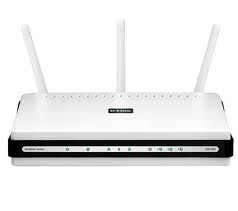
And then, you simply plug in any Wireless AP behind the switch to do the routing and provide DHCP address.  In my case, I used back my old DLink Wireless AP.  Configure it to get IP from Singtel, and then provide your Internet Network.
images.jpg


7.  How to configure it?

Screen shot 2011-06-01 at AM 07.32.17.png

You log in first.  Configure your laptop to have manual IP of 192.168.1.xx, with sub netmask of 255.255.255.0, plug into the switch.

Screen shot 2011-06-01 at AM 07.35.55.png

Create VLAN of 10, 20, 30, 40

Screen shot 2011-06-01 at AM 07.36.41.png

Screen shot 2011-06-01 at AM 07.37.25.png

Screen shot 2011-06-01 at AM 07.37.40.png

Screen shot 2011-06-01 at AM 07.37.50.png

This is how I do for VLAN 10, 20, 30 40.

After you created the VLAN ID, and make it a member to 1, 2 and 3.  You have to set the VLAN Port Settings.

Screen shot 2011-06-01 at AM 07.39.12.png

So, in my case, the ONT will come into Port 1.  So, I will need to Enable Ingress Filter, and select Tagged Only.  For PVID, I leave it at 1.

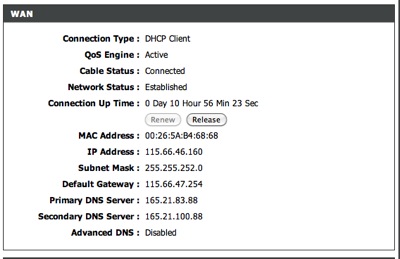
For Port 2, that will go into my DLink Wireless AP Router, so, I tagged 10 and Enable Tx Force Untag.  Once you have done this, plug in your laptop to test it, and you will get a Dynamic IP from SingTel.  So, on your DLink Wireless AP, you simply need to do DHCP address from the Internet.
Screen shot 2011-06-01 at AM 07.42.14.png

So, every things work!  I plug in my Wireless AP Router, and then all my AirPort Extreme, Express works seamlessly as before.  And I do not need to configure Static IP on my wireless devices and they do not lost Internet connections.

8.  What else that I have found out?

I also put everything behind the Aztech HL280e.  That means, I don't need to put the router in front of it.  The Aztech HL280e magically acts as a MEDIA in this case.  i.e. a wire/cable.  If your home does not need to run Internal Network as I need, (because of the NAS), then, you can buy lots of Aztech HL280e just to run Internet into every devices (which able to get Dynamic IP from SingTel).

9.  What's Next?

Next, I will try to replace the DLink Wireless AP to Gigabits version.  Now it is still 100baseT.

Also, I need to figure out why Synology and iMac does not run stable on 1Gbits.

I will try Jumbo Frame.

Lastly, I will try to make MIO TV work, since now I found a way to do all these.  Let's see how.

I will update more.

[UPDATES] - Sep 13, 2011

Related Posts:

1.  Phase 2 of my network.  http://miniliew.blogspot.com/2011/06/my-home-fiber-network-after-revamping.html

2.  Initially, I got an Aztech HL280E, the fastest 1Gbps Powerline/Homeplug.  But it keeps going down.  And I finally figure out why.  http://miniliew.blogspot.com/2011/07/home-networking-why-my-aztech-hl280e.html

3.  So, I dumped the 1Gbps power line, and switch it to the latest HomePlug from Aztech, HL115EP.  And it has been running for almost 6 weeks now, and I have not had any problem with it.  http://miniliew.blogspot.com/2011/07/home-network-improvement-plan-homeplug.html

4.  I did my bench mark test for my ASUS Black Diamond.  It is really the LAN-to-WAN speed super performance that I like. http://miniliew.blogspot.com/2011/07/home-network-improvement-plan-asus.html

5.  How I benchmark and improve my wireless at home.  http://miniliew.blogspot.com/2011/08/network-performance-1-wireless.html

6.  I also satisfy with my gigabits network at home.  And here is how I bench mark it.  http://miniliew.blogspot.com/2011/08/network-performance-2-is-gigabits.html

7.  Oh ya, about the black diamond.  In Malaysia, LoYat building, you can get it at least S$30 cheaper. http://miniliew.blogspot.com/2011/08/malaysia-boleh-buy-this-toy.html

8.  I tried to explained why it is important to watch out the power plug and what is the surrounding power noise.  Understanding it, then, you can improve your powerline/Homeplug experience.  http://miniliew.blogspot.com/2011/08/slow-homeplug-try-powerline-filter.html

9.  The latest benchmark I have done.  I switch to use AFP instead of SMB on my Synology box. http://miniliew.blogspot.com/2011/09/afp-or-smb-synology-dsm-32-for-ds411ii.html

10.  If you read KLSeet.Com website, you will now that now ASUS Black Diamond has a Beta Firmware 8.1.1.4 that is supporting both Malaysia Unifi and Singapore Sintel exStream Fiber.

http://www.asus.com/Networks/Wireless_Routers/RTN56U/#download &

Screen Shot 2011-09-14 at 9.16.56 AM.png

http://klseet.com/index.php?option=com_content&view=article&id=93&Itemid=87

Again, I am not a tech reviewer etc... I am just an average guy trying to enjoy building my own network, and share whatever I have learn at my blog.  So I have not try to install the 8.1.1.4 yet, because I already have SLM2008 running, there is no urge for me to upgrade it to test out.  I always believe a router is a router, a switch is a switch, and try not to "overload" everything in a single box.  :)  Have fun readings the updates.